





Every tool where you need it
What is it?The Editor is laid out like a big IDE: the code in the middle, tool windows around it that you dock, open as a tab or pull into a window of their own.
Stripes on the left, right and bottom hold the tool windows: project, remote, Git and notes, terminal, find, problems and launcher, Claude, MCP, WebDonkey, database, mail and AI. Each one can be docked, opened as a tab in the code area or pulled into a macOS window of its own.
Free costs nothing and has no time limit. macOS 11 or later, Apple silicon and Intel.
Without WebDonkey
A separate program for every tool, and each one remembers its place on its own or not at all. For the next project you set everything up again.
With WebDonkey
Project, remote, Git and notes on the left, terminal, find, problems and launcher at the bottom, Claude, MCP, WebDonkey, database, mail and AI on the right. Which ones are open, how big they are and which tabs you had, the Editor remembers per project.
What you get out of it
- Everything in one windowCode, terminal, Git, servers and Claude side by side, without switching between programs.
- Snapping dividersDividers snap at ¼, ⅓, ½, ⅔ and ¾, ⇧⌘F12 hides all tool windows, Esc takes you back to the code.
- Second screenEvery tool window also runs in a macOS window of its own, say Mission Control on the second monitor.
In detail
Stripes and shortcuts
On the left project (⌘1), remote (⌘2), Git (⌘9) and notes, at the bottom terminal (⌥F12), Mission Control, find (⇧⌘F), problems (⌘6), Git Graph and launcher, on the right Claude (⌘3), MCP (⌘7), WebDonkey (⌘4), database (⌘5), AI (⇧⌘I) and mail. Project and terminal are open at start; a dot on an icon marks a tool that is open as a tab or a window of its own.
Dock, tab or a window of its own
Every tool window can be docked at the edge, sit as a tab between your files or live in a macOS window of its own, say on the second screen. Each side has two halves, so project on top and Git below it, for example. Close the tab or the window and the tool docks back in its place; a terminal keeps running meanwhile.
Size and space
Dividers snap at ¼, ⅓, ½, ⅔ and ¾, a double-click switches between half and the last size. ⇧⌘' maximizes the tool windows of a side, ⇧⌘F12 hides them all, Esc takes you back to the code. In narrow windows the side docks float over the code.
Remembered per project
The place of each tool applies to all projects. Which tools are open, the sizes, the open tabs and splits and what a tool showed last are remembered per project. Open it again and everything looks as before.
Start screen
The workplace next to WebDonkey starts with your recent projects, your sites from WebDonkey and buttons to open a folder or clone a repository. Whether the editor reopens the projects that were open last or starts here is up to you.
Projects and windows
The project menu in the title bar lists your recent projects. When you open another folder (⌘O), you choose: new window, this window or attach. Attached folders form a combination with a name of its own, and every project can have a macOS window of its own.
What does Free include?
Layout and tool windows are Free. The Editor is free.
Compare Free and PremiumGoes well with this
-
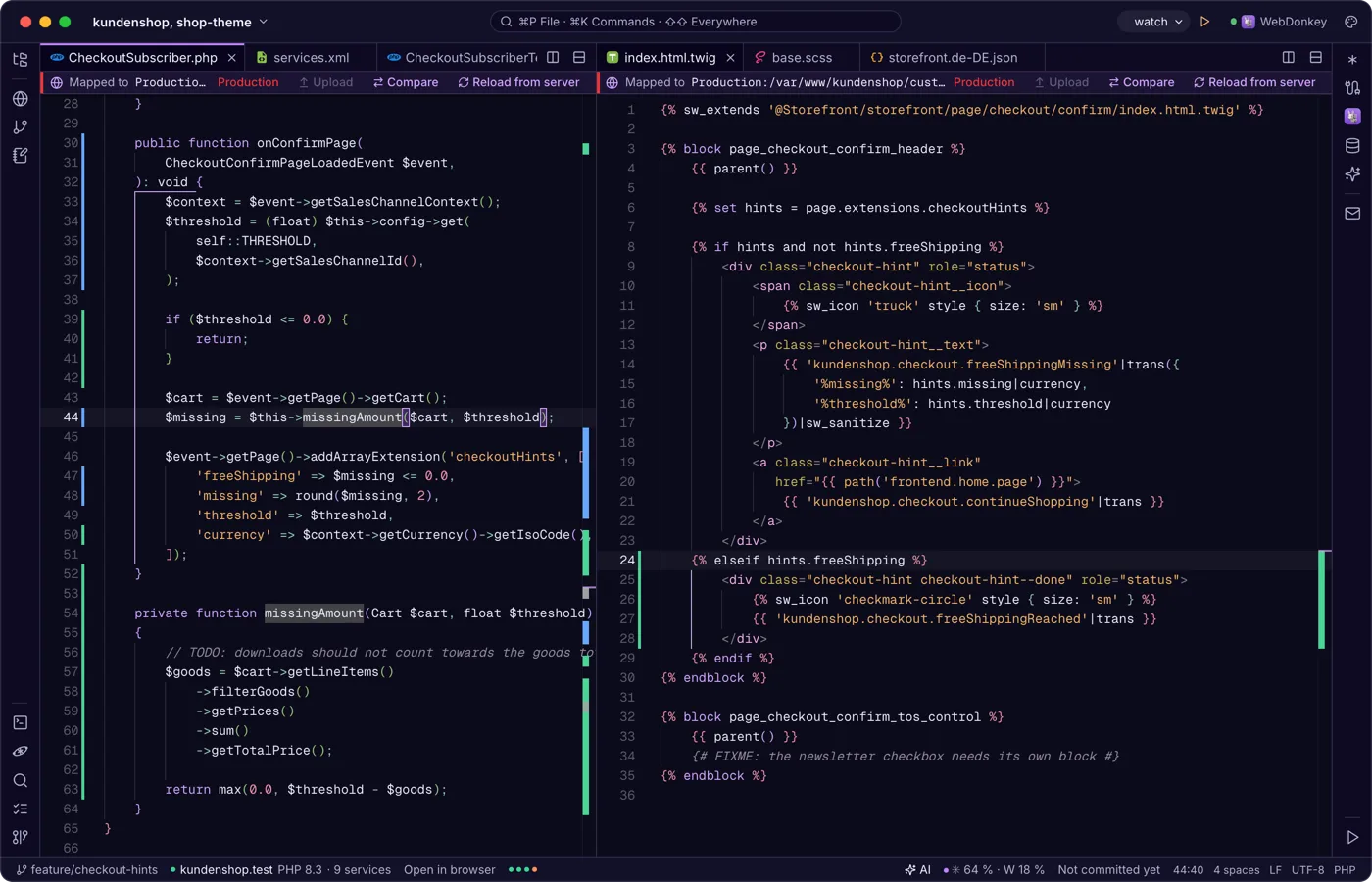
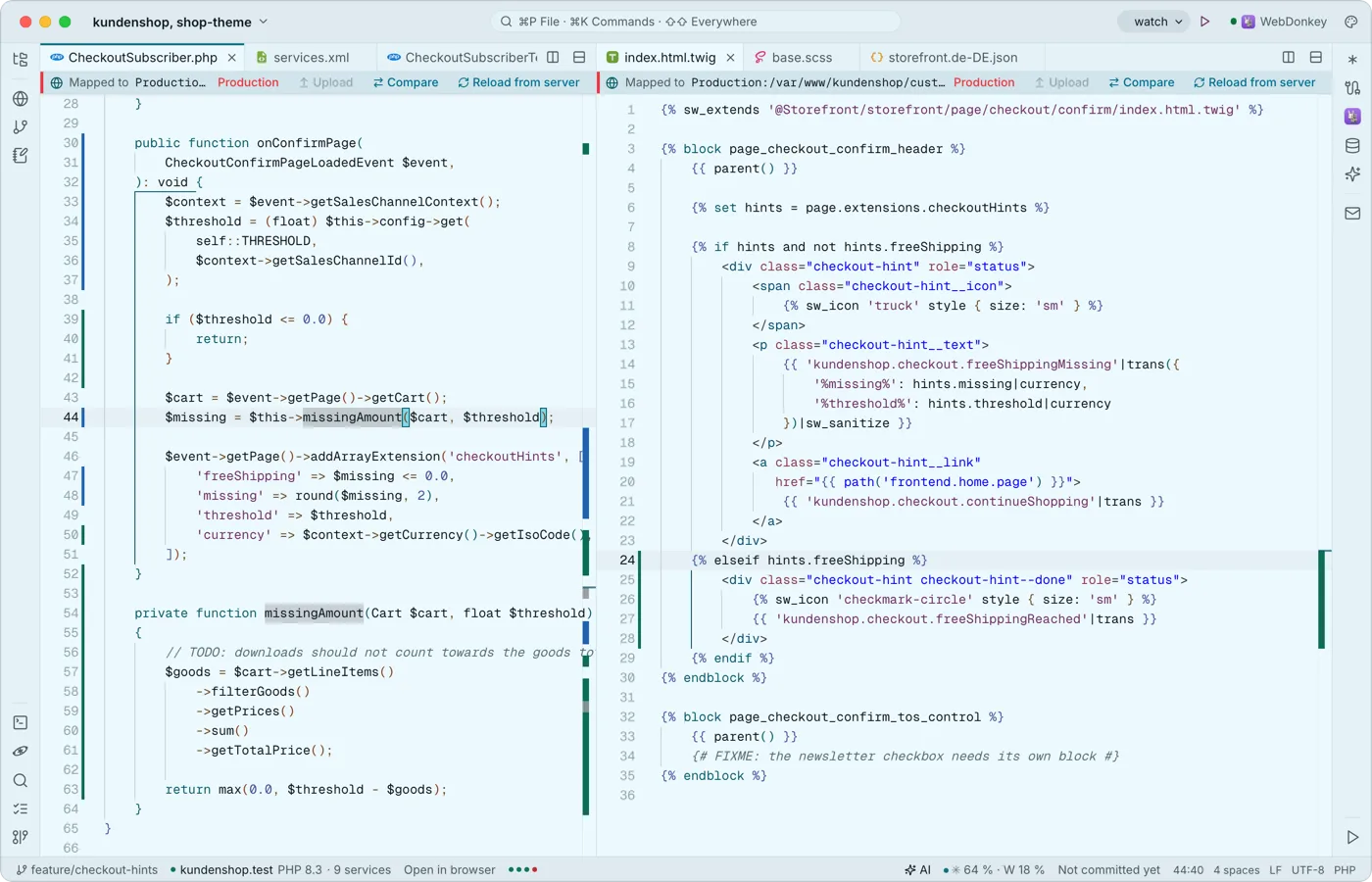 Tabs, splits and an editor that knows codeMonaco, the engine of VS Code, works in the middle, built in and offline: multiple cursors, code folding, syntax colours for many languages, snippets with placeholders and Emmet. Split the area as often as you like.
-
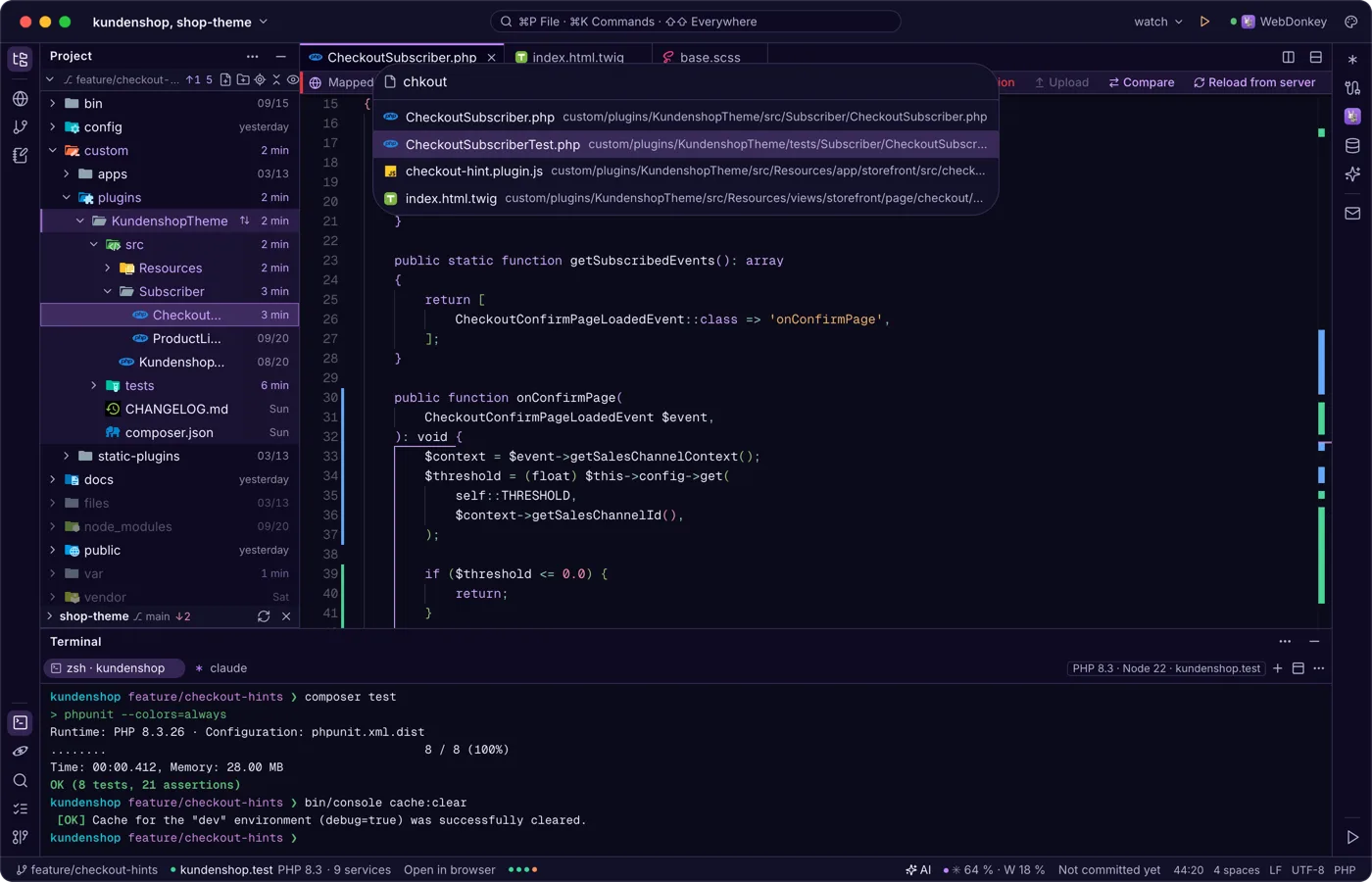
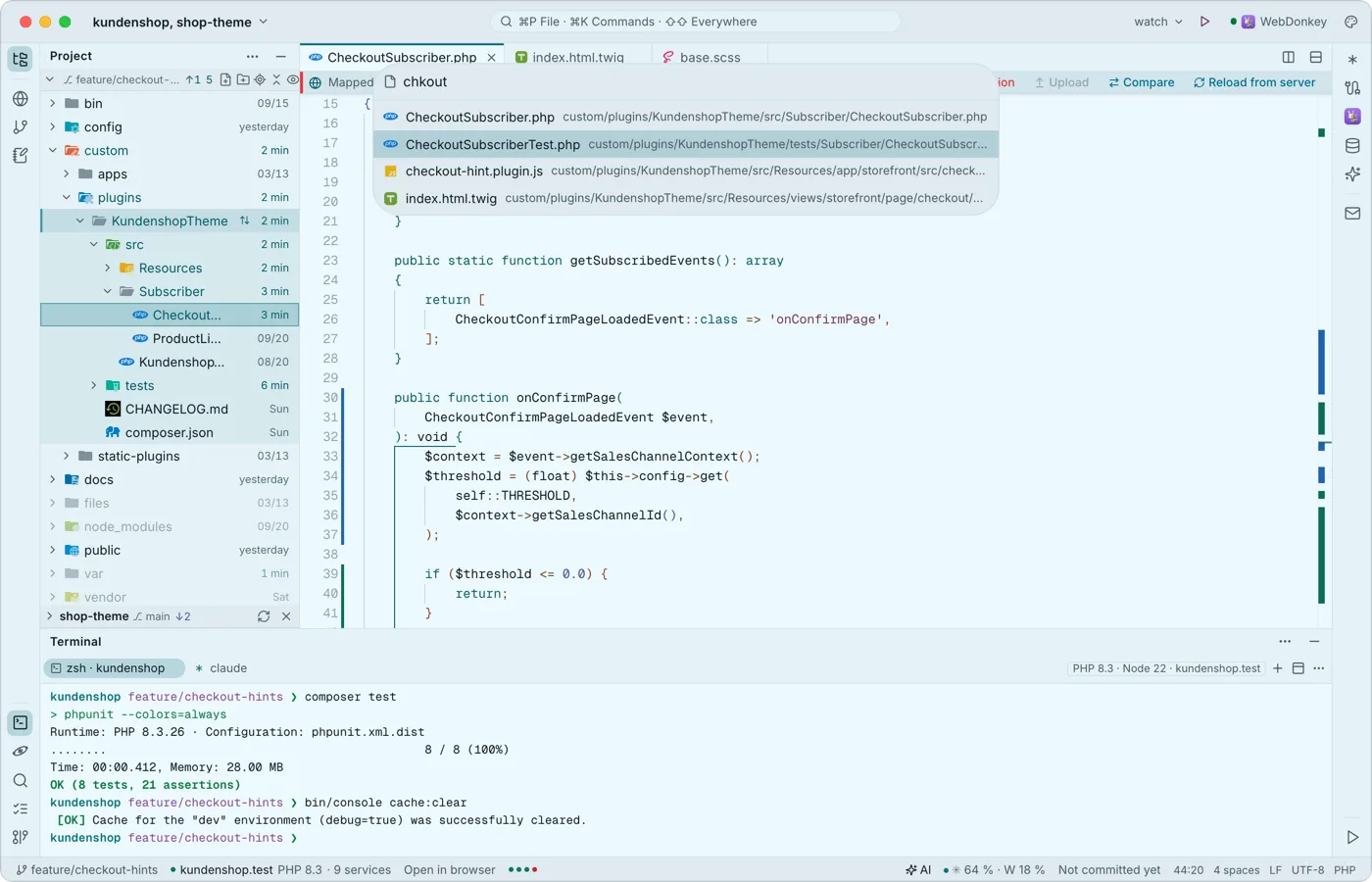 Anywhere by keyboard⌘P finds any file, ⌘K any command, ⌘E the files you opened last. Pressing ⇧ twice searches everywhere: files and text, tools, sites, launchers, commands, settings, Git branches, tables, servers, notes, AI chats and service configs.
-
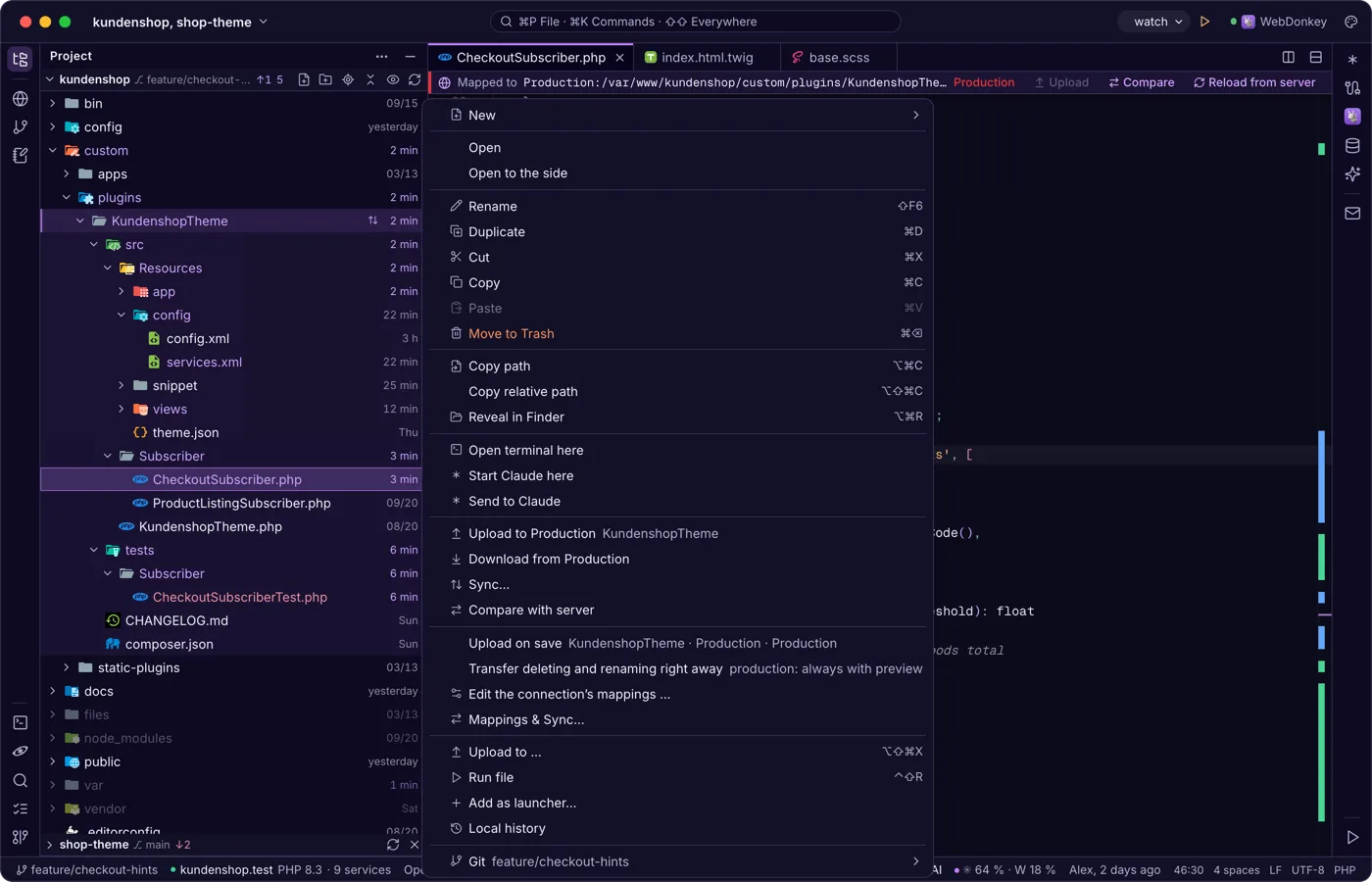
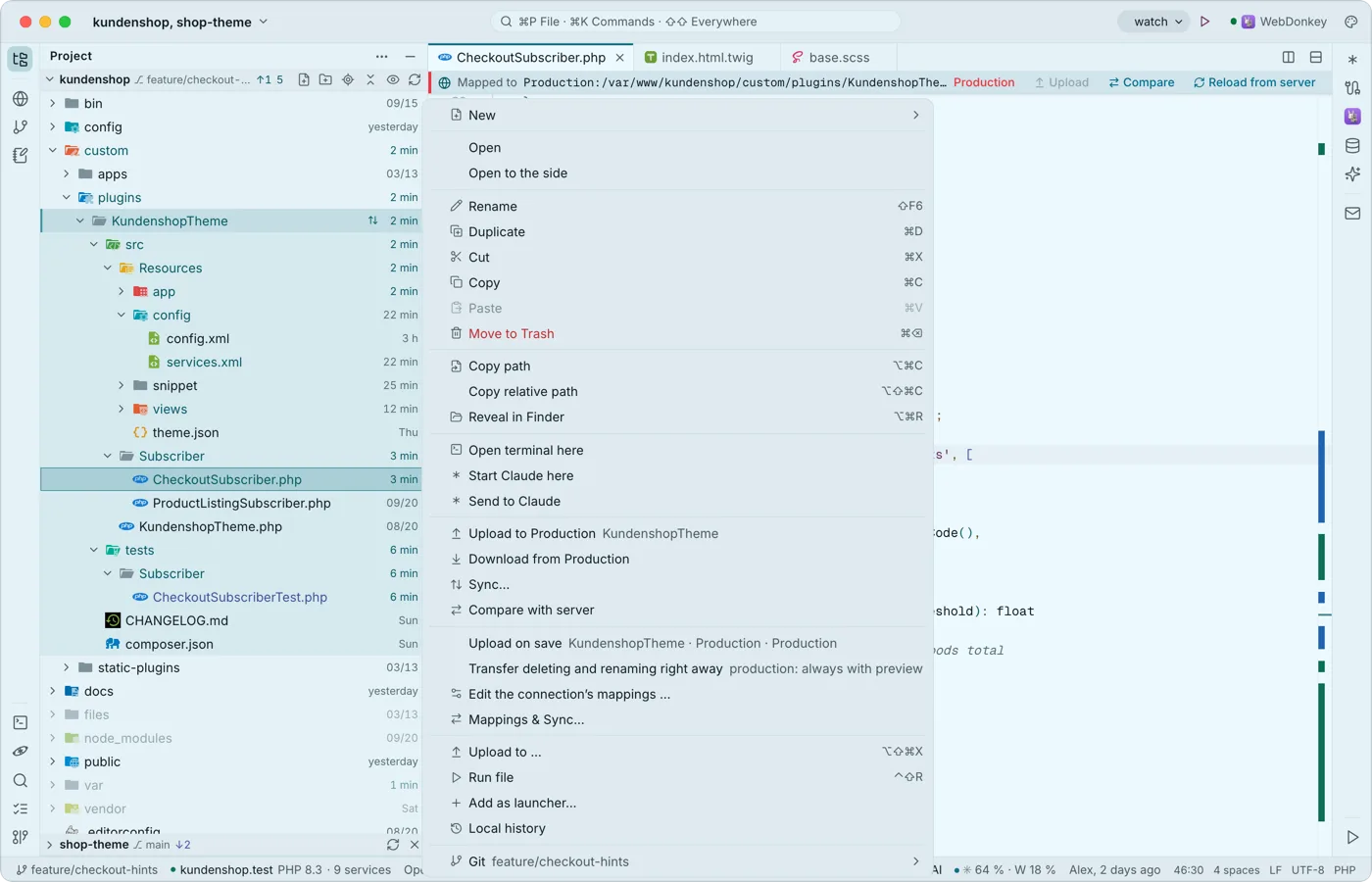 Your project, with everything that belongs to itThe project tree shows Git colours, the change time of every file if you like, and branch and status on every repository. You create files, rename, move by dragging and start a terminal or Claude right in the right folder.
-
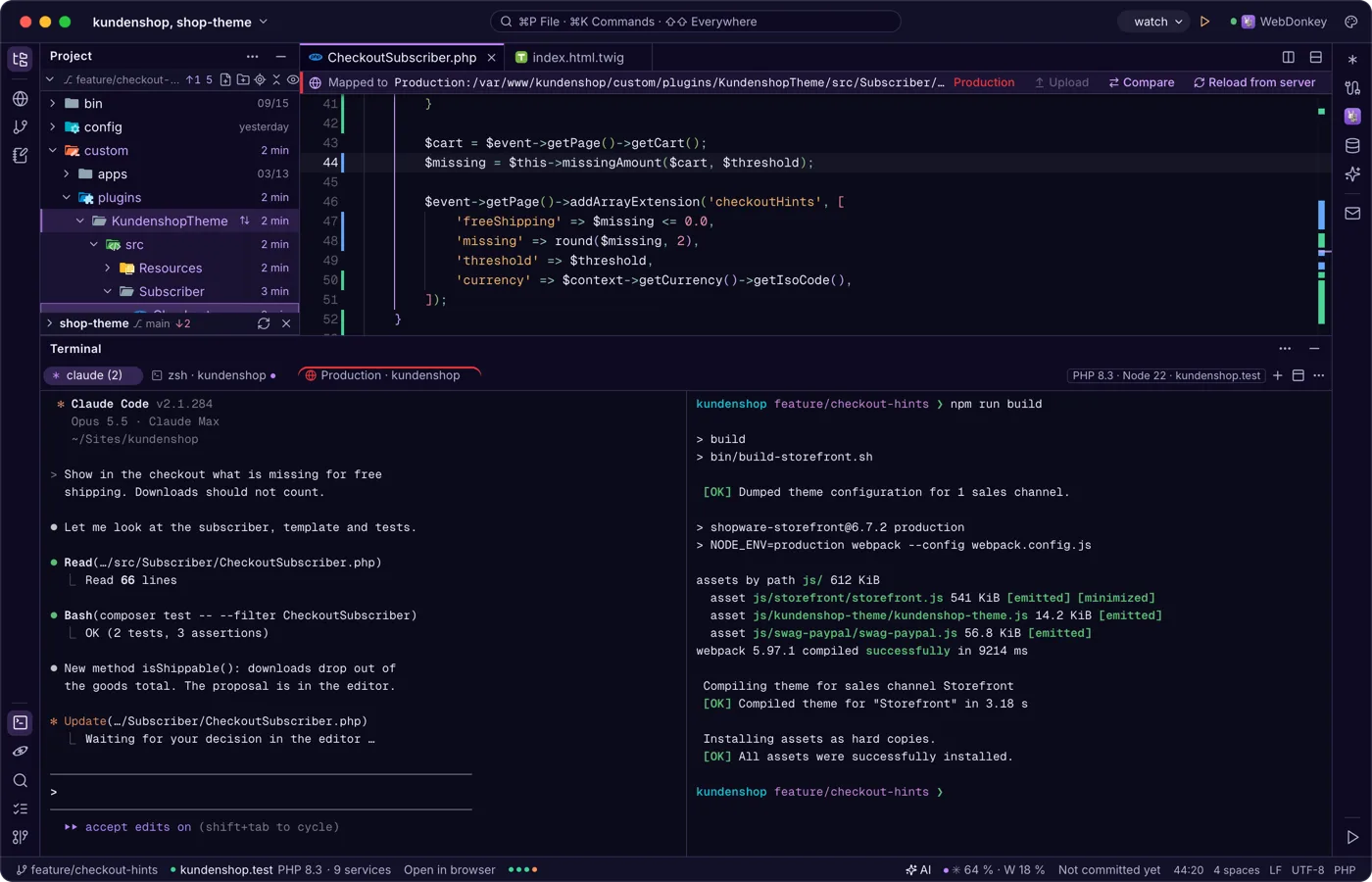
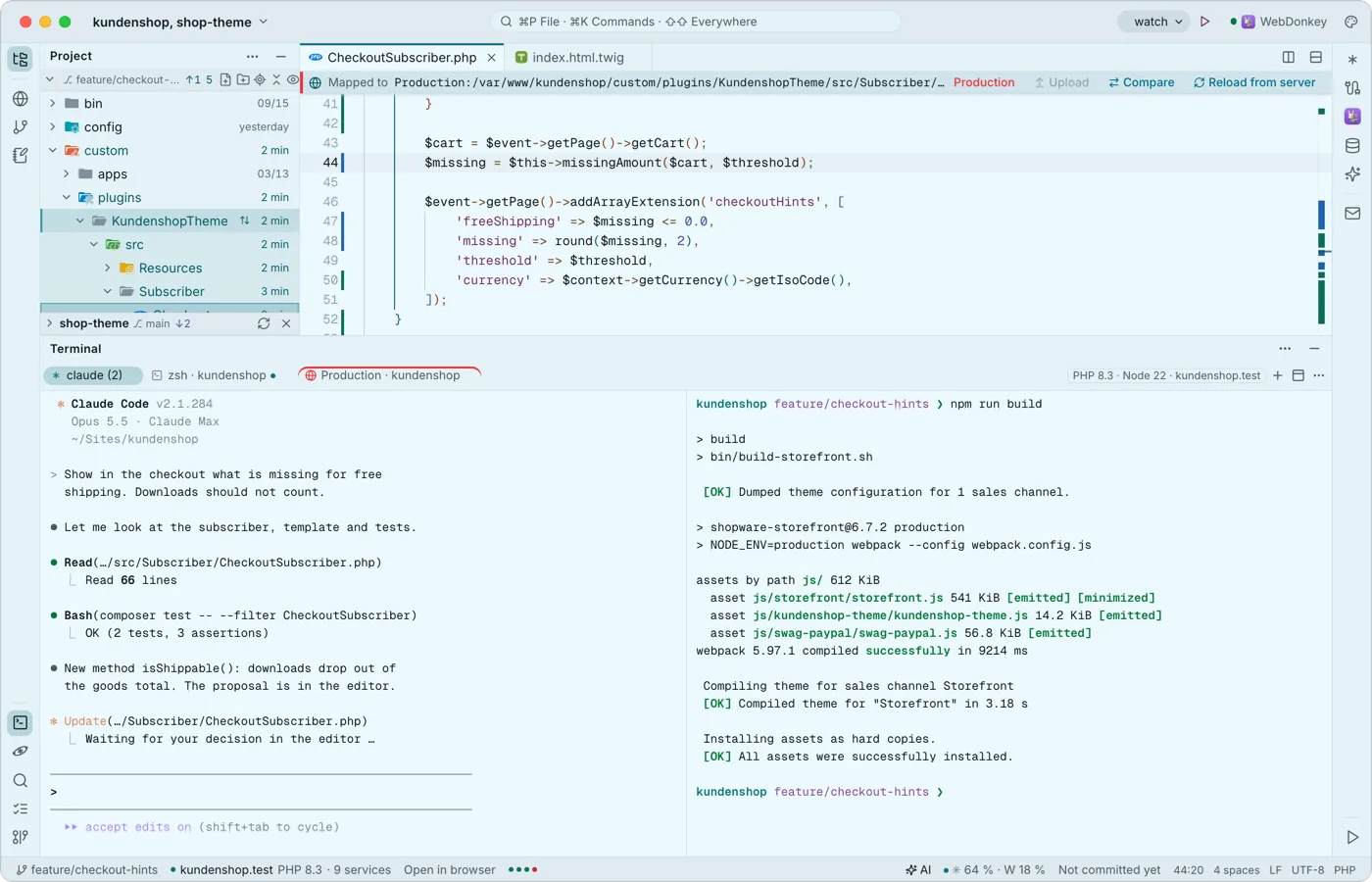 A terminal built for Claude CodeYour shells run at the bottom in tabs and splits, with Premium also over SSH on a server. Every key belongs to the program, ⇧↩ is Claude's newline, and when a program calls for you, the tab gets a dot and you a notification.
Try it on your own project.
Free costs nothing and has no time limit. macOS 11 or later, Apple silicon and Intel.
