





The preview at full width
When you open a website, the preview takes up the full width. The chat sits on the left, the menu with pages, facts, checks and history on the right, and both slide open when you move the pointer to their handle at the edge. The workspace is fully included in Free.
Free costs nothing and has no time limit. macOS 11 or later, Apple silicon and Intel.
In detail
Preview
Shows the website the way visitors will see it, with the latest version that passed every check, and until there is one, with the first successful build. If a check is red, the last green version stays on screen, on reload too, and export and publishing take exactly that one. Links work as on the real website, and Open in browser shows the same page in your browser.
Chat and menu
Both are panels on top of the preview. Hovering slides them open, a click on the handle opens or closes them, Escape closes them. The pin keeps a panel open, separately for chat and menu and after a restart too. The Facts tab shows the number of open questions, the Checks tab the number of red parts.
Top bar
At the top right: Show folder in Finder, Edit website, Undo, Test in WebDonkey and Publish. Next to them you see what Pages is doing, such as building, checking or publishing. Pages only ever works on one thing per website.
Undo
Restores the most recent saved state, rebuilds the website and checks it before it appears in the preview. Each further click goes back one more state. Deleted photos the earlier state needs come back. There is no redo; ask the AI again instead.
Publish buttonFree & Pages package
Opens the Publish website window. It first shows what is still missing, then the ways out: straight to your server with a Pages package, or as a ZIP, in Free too. The same window exports the backup.
What does Free include?
This feature comes in Free and in Premium. Where Free ends is set out in the details and in the comparison.
Compare Free and PremiumGoes well with this
-
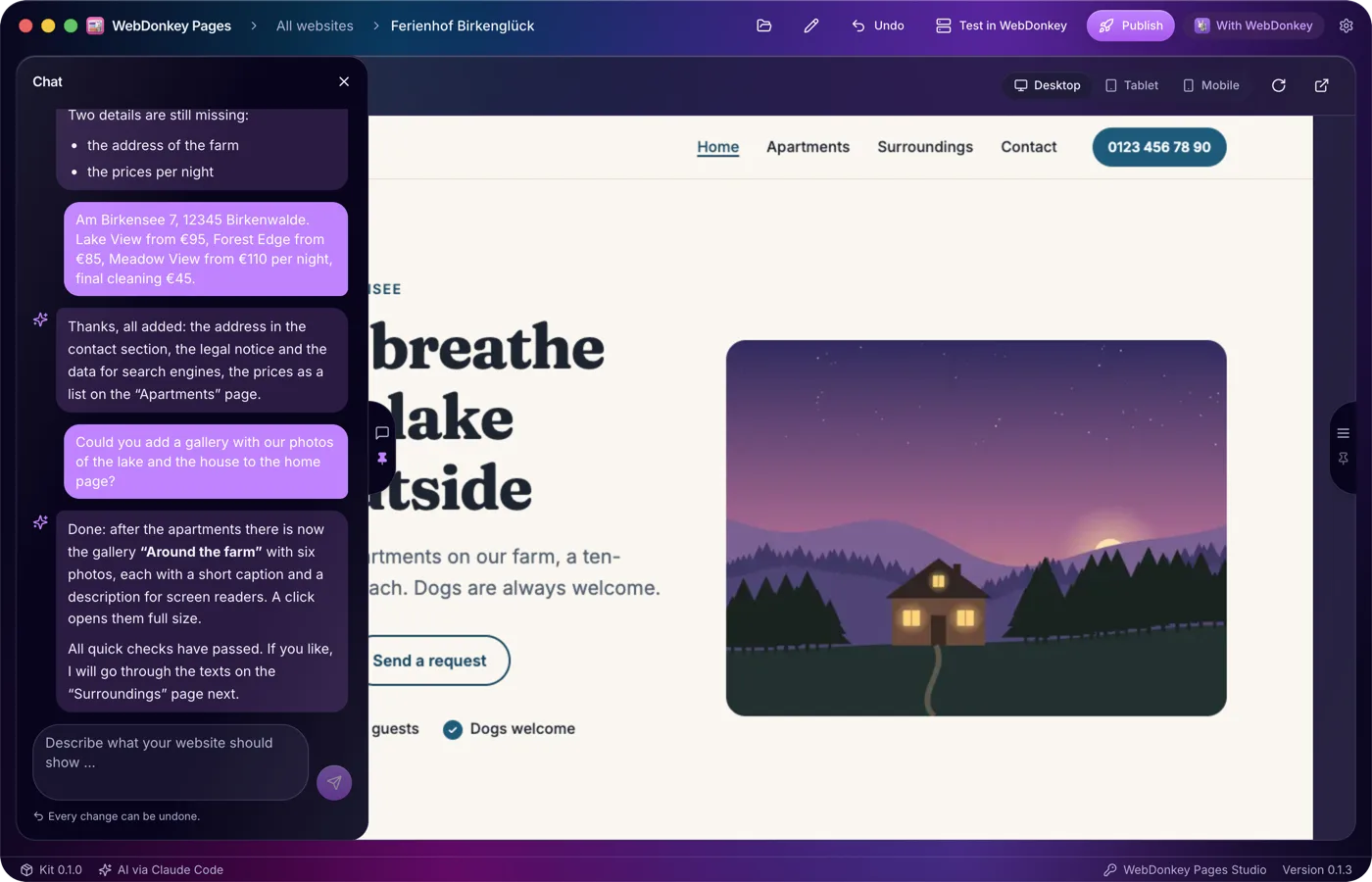
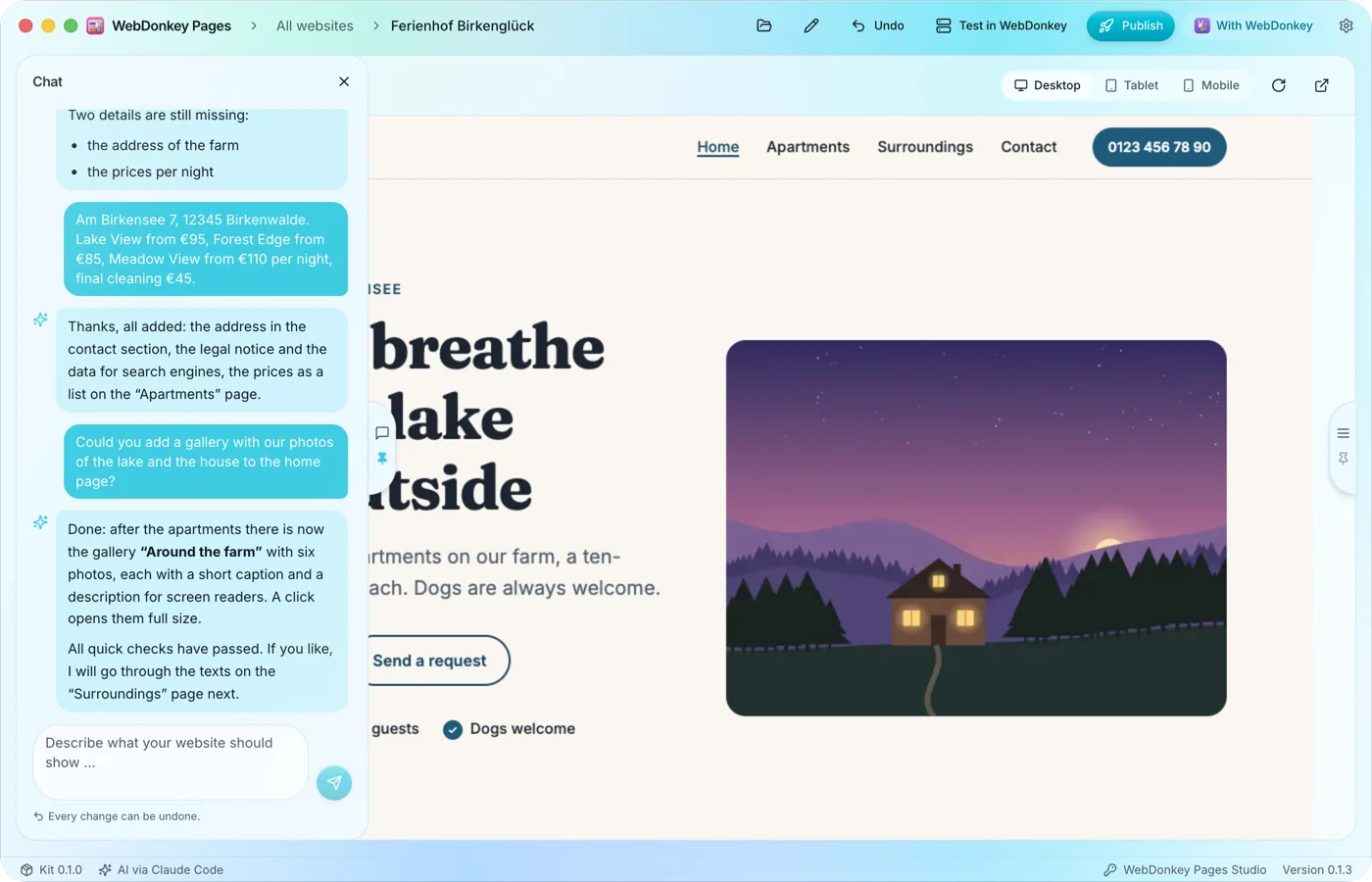 Just say what the website should showIn the chat you describe in your own words what you offer, for whom and where. The AI turns that into pages, copy and a design of its own, has the result checked and tells you briefly what it changed and what it still needs to know.
-
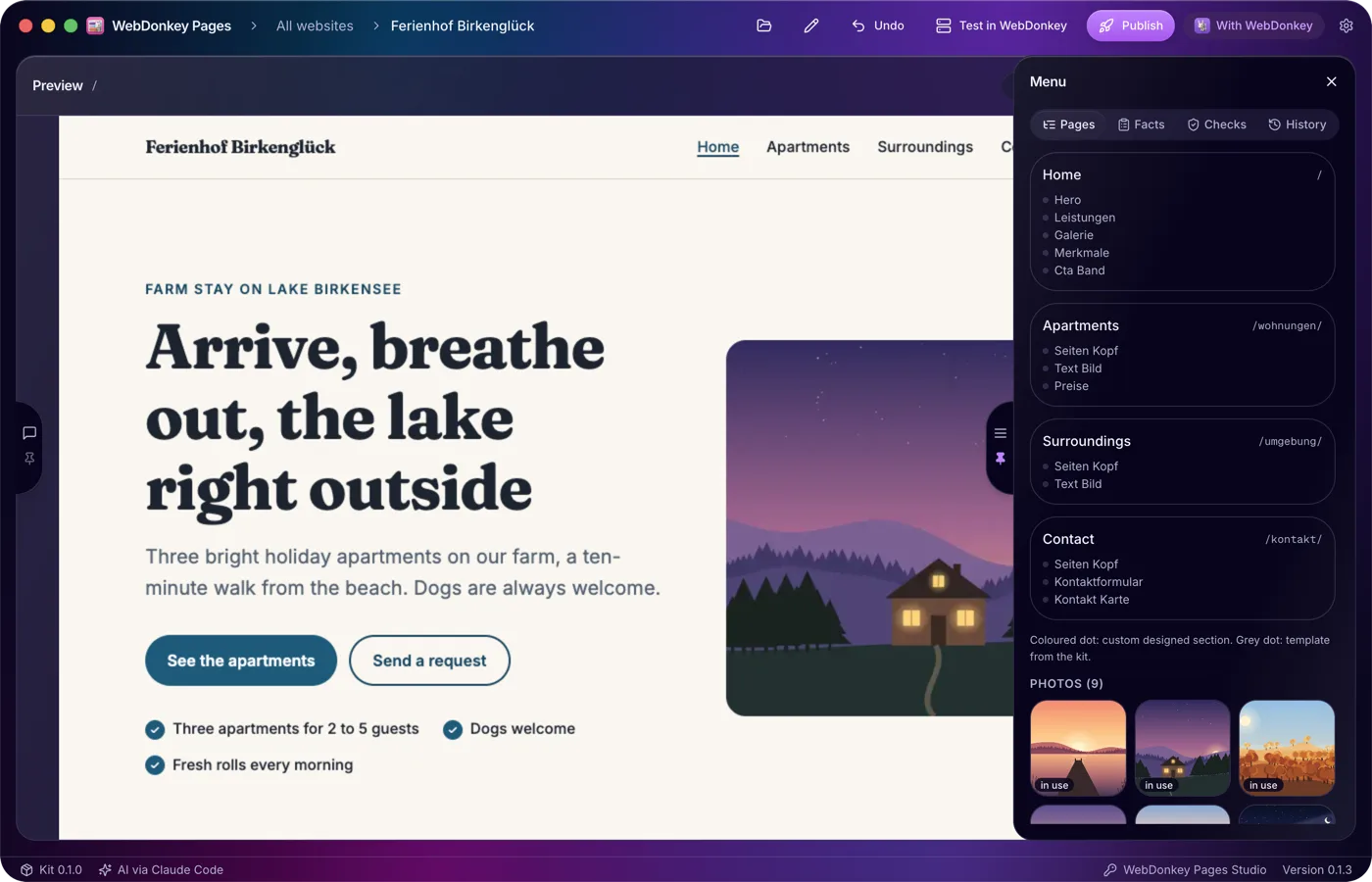
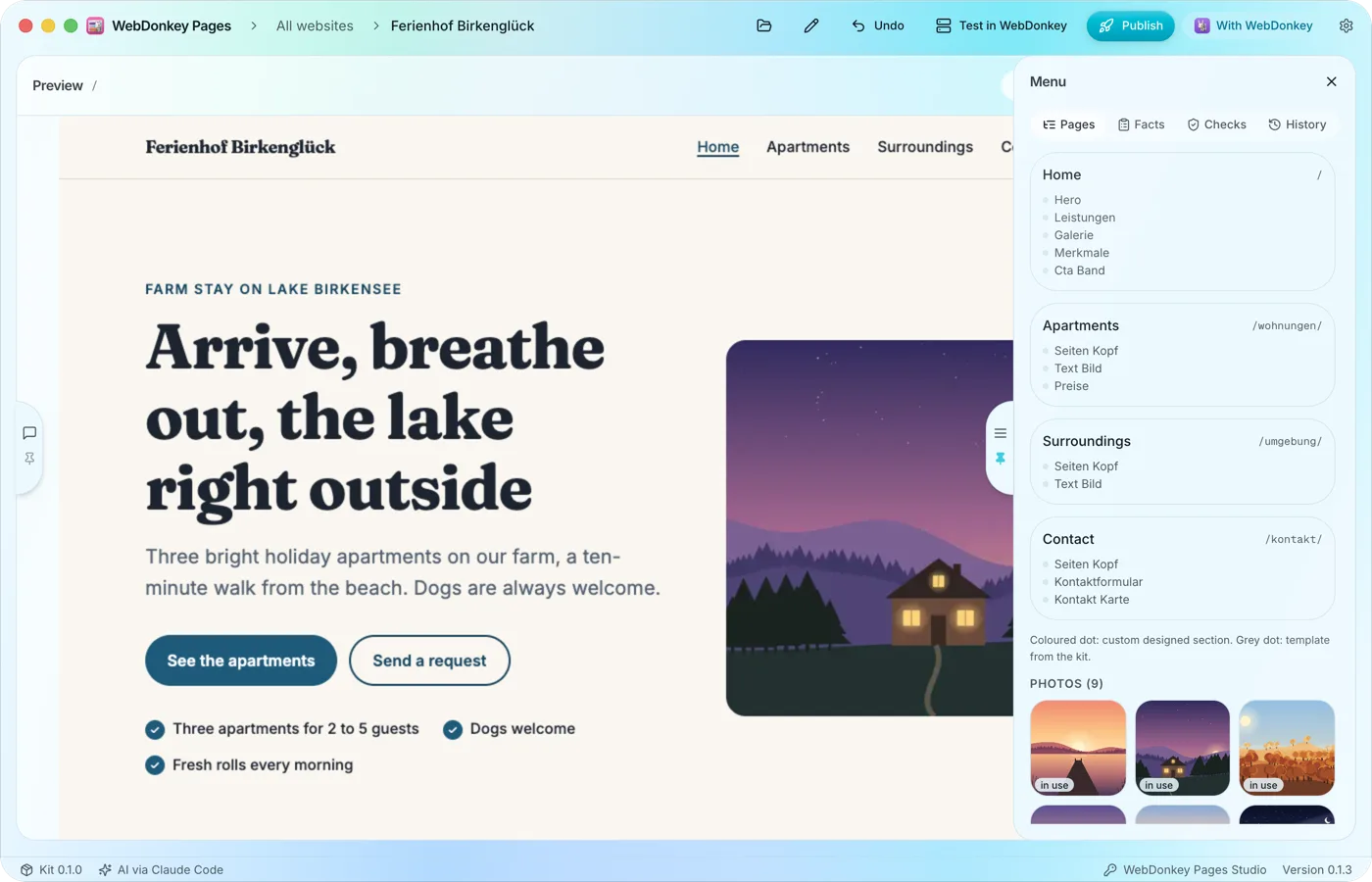 Pages and sections at a glanceThe Pages tab shows every page with its address and, below it, its sections in the order they appear on the page. You change the structure in the chat, and a click on a page shows it in the preview.
-
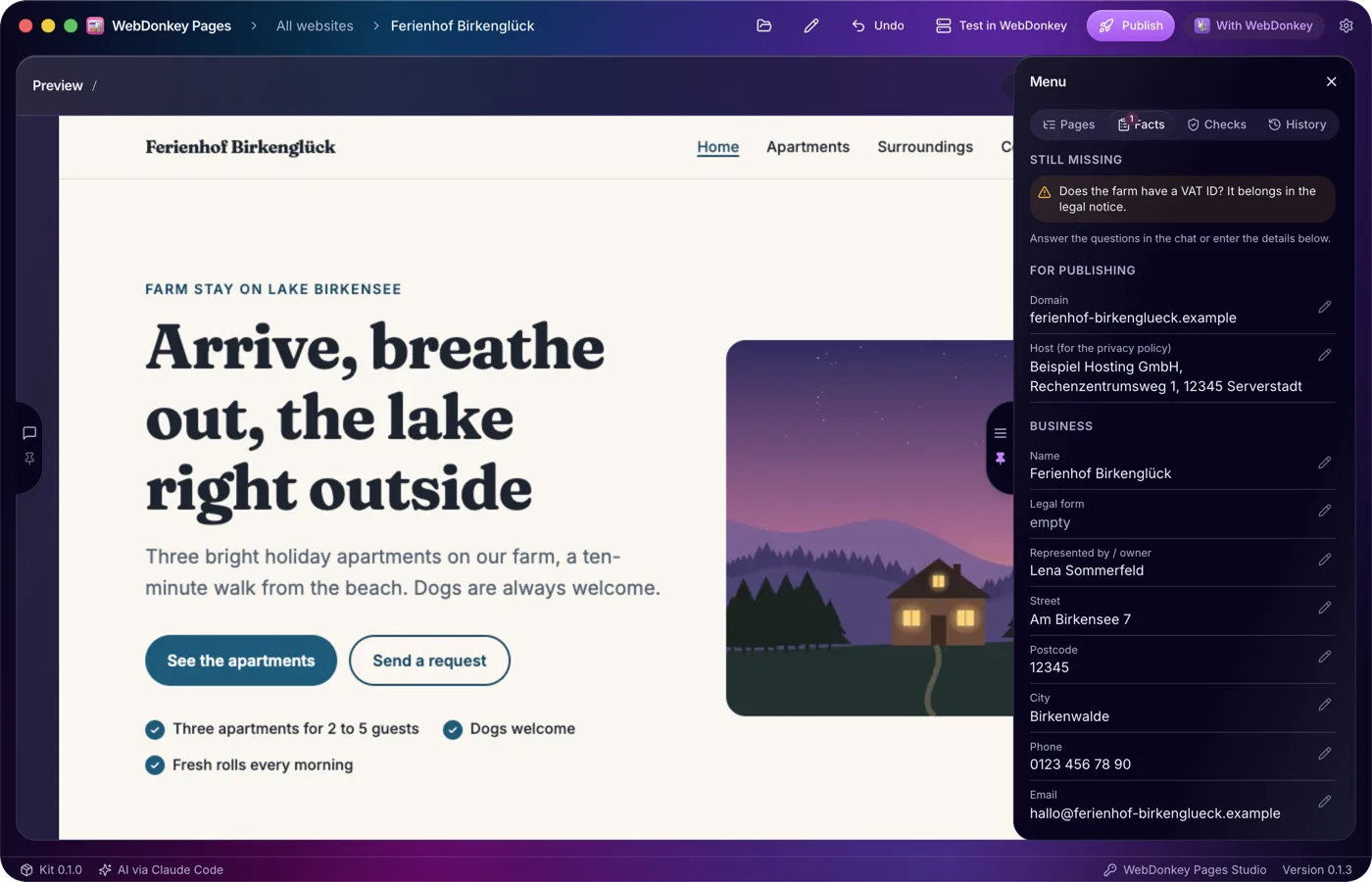
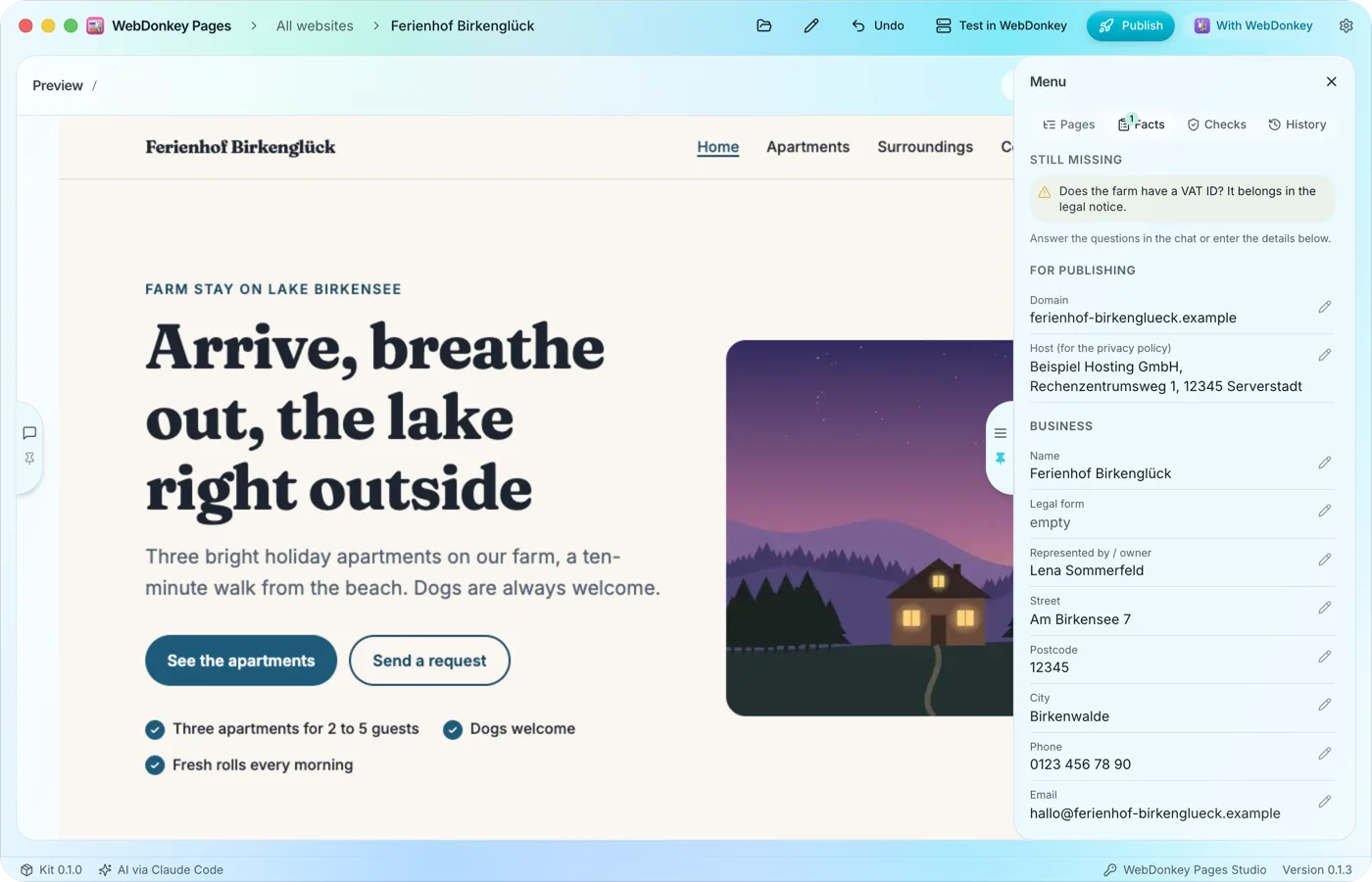 What Pages must not inventThe Facts tab collects the details your website needs: domain, host, the business's name and address, contact details and register entry. Whatever the AI learns in the chat it enters itself, and you can edit every field yourself too.
-
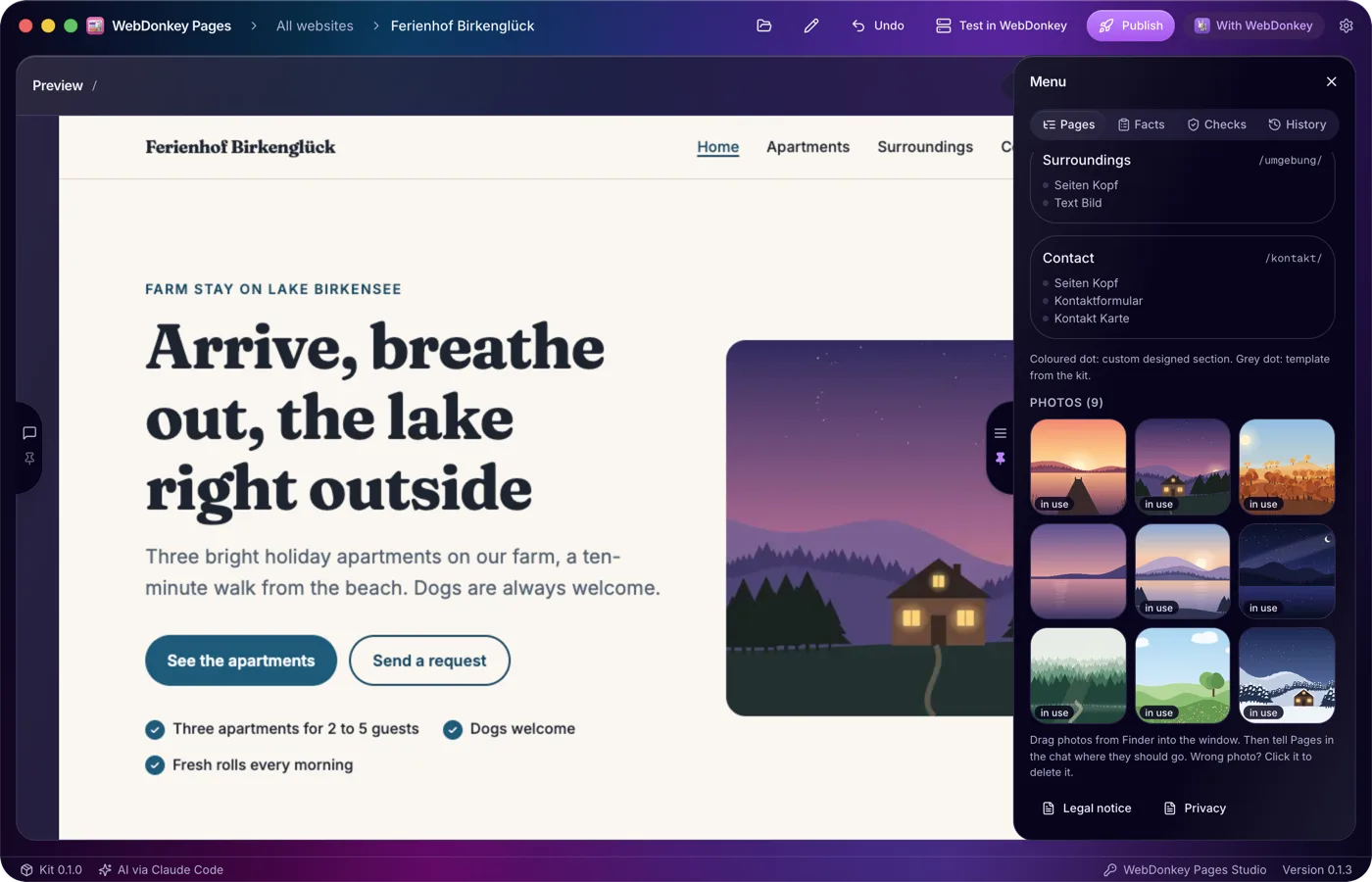
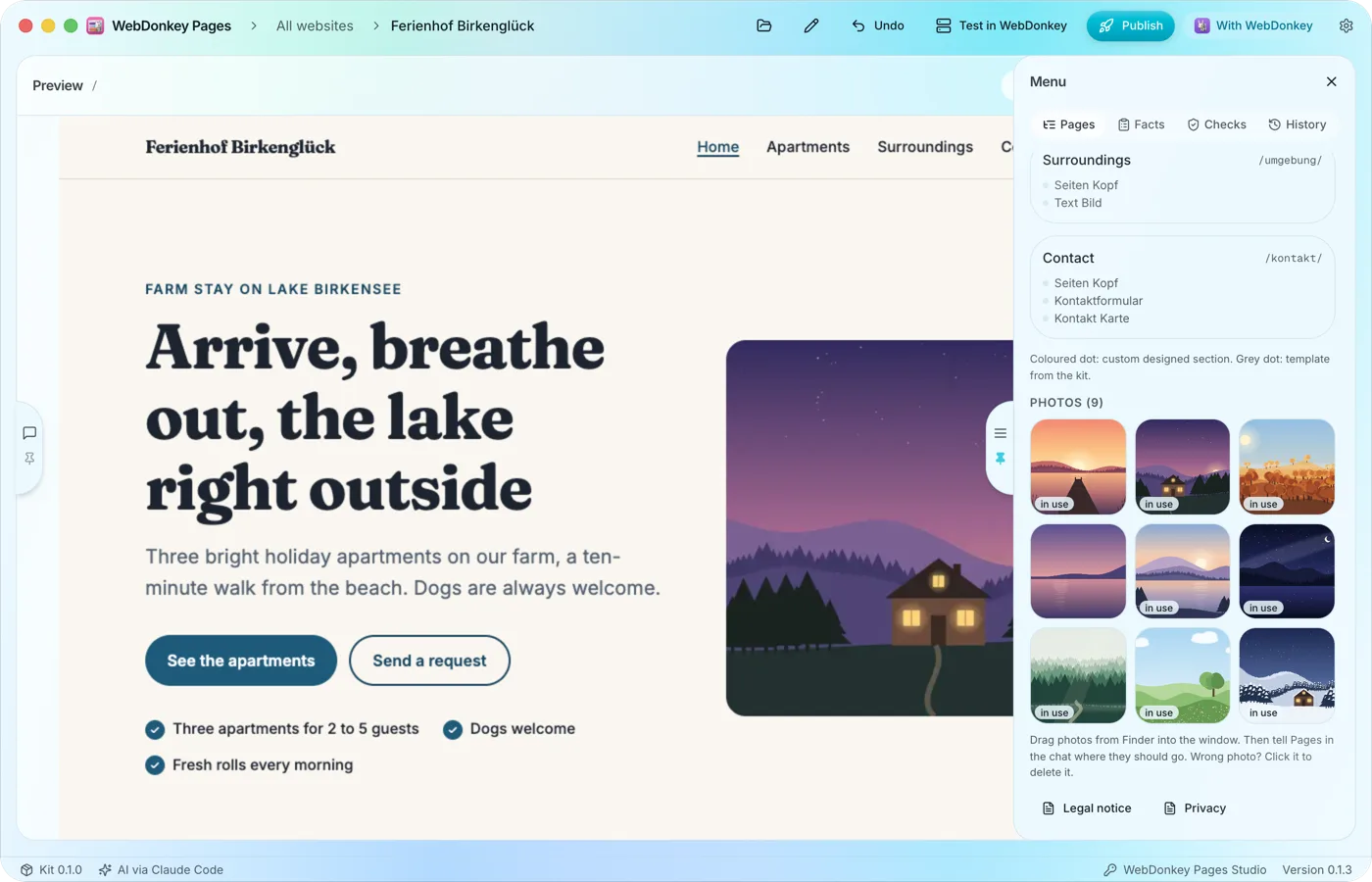 Your own photos, drag and dropDrag photos from Finder into the window and tell the AI in the chat where they should go. All photos of a website are listed in the Pages tab. Without photos Pages designs the website with type, colour and shapes and asks you for some.
Try it on your own project.
Free costs nothing and has no time limit. macOS 11 or later, Apple silicon and Intel.
