





WebDonkey without switching windows
What is it?The WebDonkey window (⌘4) shows your sites, services, logs and scheduled tasks from WebDonkey, live while WebDonkey runs.
The WebDonkey window (⌘4) shows your sites, services, logs and scheduled tasks, live while WebDonkey runs. Open sites in the browser or as a project, start and stop services from here, and their configuration opens in the editor.
Free costs nothing and has no time limit. macOS 11 or later, Apple silicon and Intel.
Without WebDonkey
To restart PHP you switch to WebDonkey, for the log to a third window, and which version the site has, you go and look up.
With WebDonkey
Open sites in the browser or as a project, start and stop services from here, and their configuration opens in the Editor. After saving, WebDonkey checks nginx, Apache, Caddy and PHP and offers a reload.
What you get out of it
- Status barOn the left branch, site and PHP version, a button that opens the site in the browser, and a dot per service of the site to start, stop and follow the log.
- From WebDonkeyIn WebDonkey every site has the Open in editor button. In the terminal, wd edit file:line opens a file; with --wait the Editor works as $EDITOR.
- Even without WebDonkey runningWhen WebDonkey is not running, the Editor still shows the sites, read only.
In detail
Sites
Every site with status, domain, SSL and PHP version, the project's own highlighted. Open in the browser, open as a project, start or stop. The sites also show up in the ⇧⇧ search and on the start screen.
Services and their configurationFree & Premium
Start, stop and restart services, run scheduled tasks right away. The services' config files open in the editor; after saving, WebDonkey checks nginx, Apache, Caddy and PHP and offers a reload. Logs as a tab and the global php.ini are Premium.
Status bar
On the left branch, site and PHP version, a button that opens the site in the browser and a dot per service of the site: a click offers start, stop, restart and follow log. On the right the update notice, AI, the Claude limits, Git blame for the current line and cursor, language and indentation. Every entry can be hidden.
From WebDonkey
In WebDonkey every site has an “Open in editor” button, and under Settings › Sites & services you pick the editor for code. In the terminal wd edit brings the window to the front, wd edit file:line opens a file; with --wait the editor works as $EDITOR.
What does Free include?
The WebDonkey window is Free. It needs the current WebDonkey version from the download page.
Compare Free and PremiumGoes well with this
-
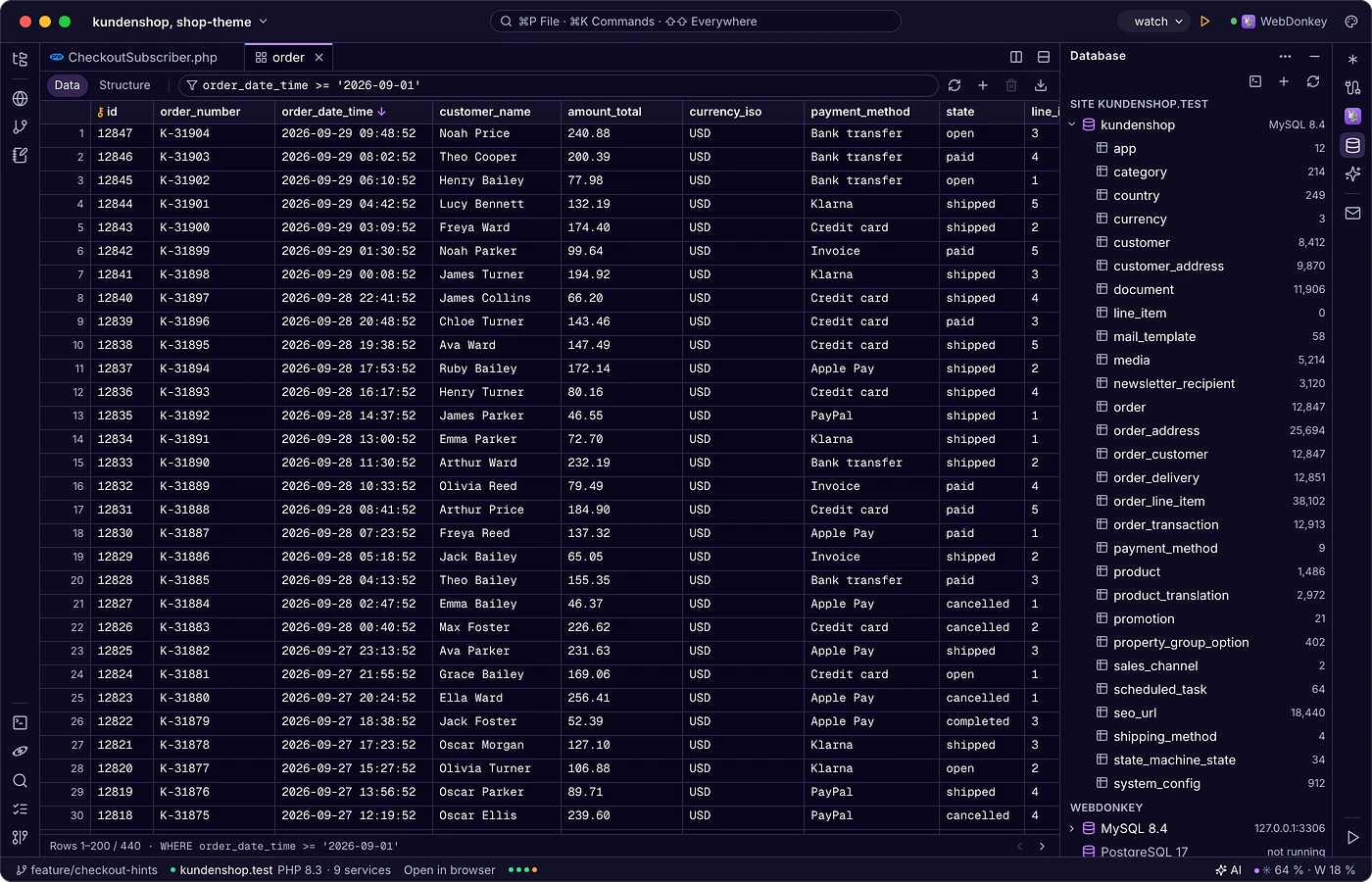
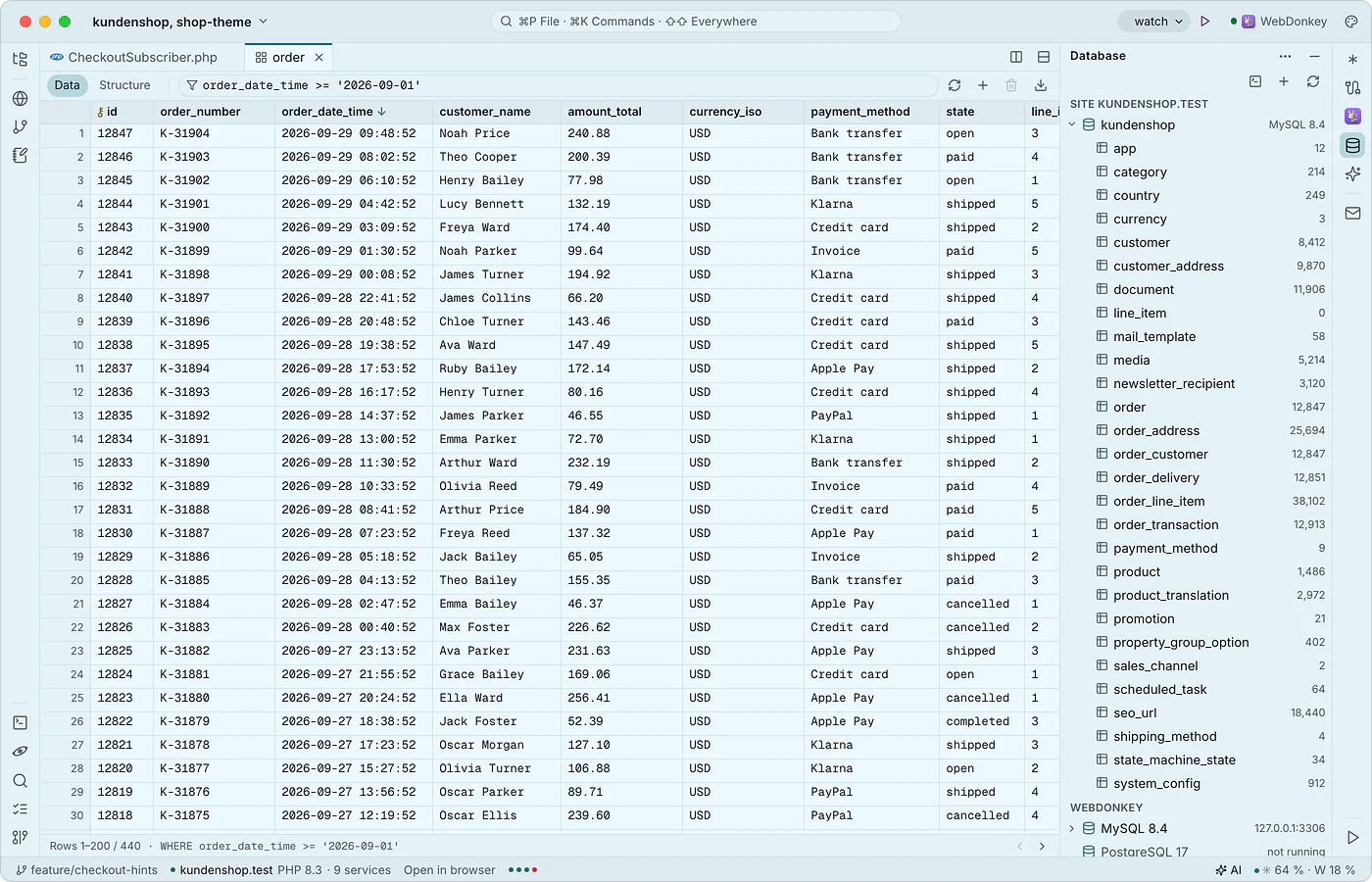 Databases in the editorThe database window (⌘5) shows the MySQL, MariaDB and PostgreSQL servers from WebDonkey with the current site's database on top and, with Premium, the databases on your servers. Tables open as a tab with data and structure, plus an SQL console. Local databases are free.
-
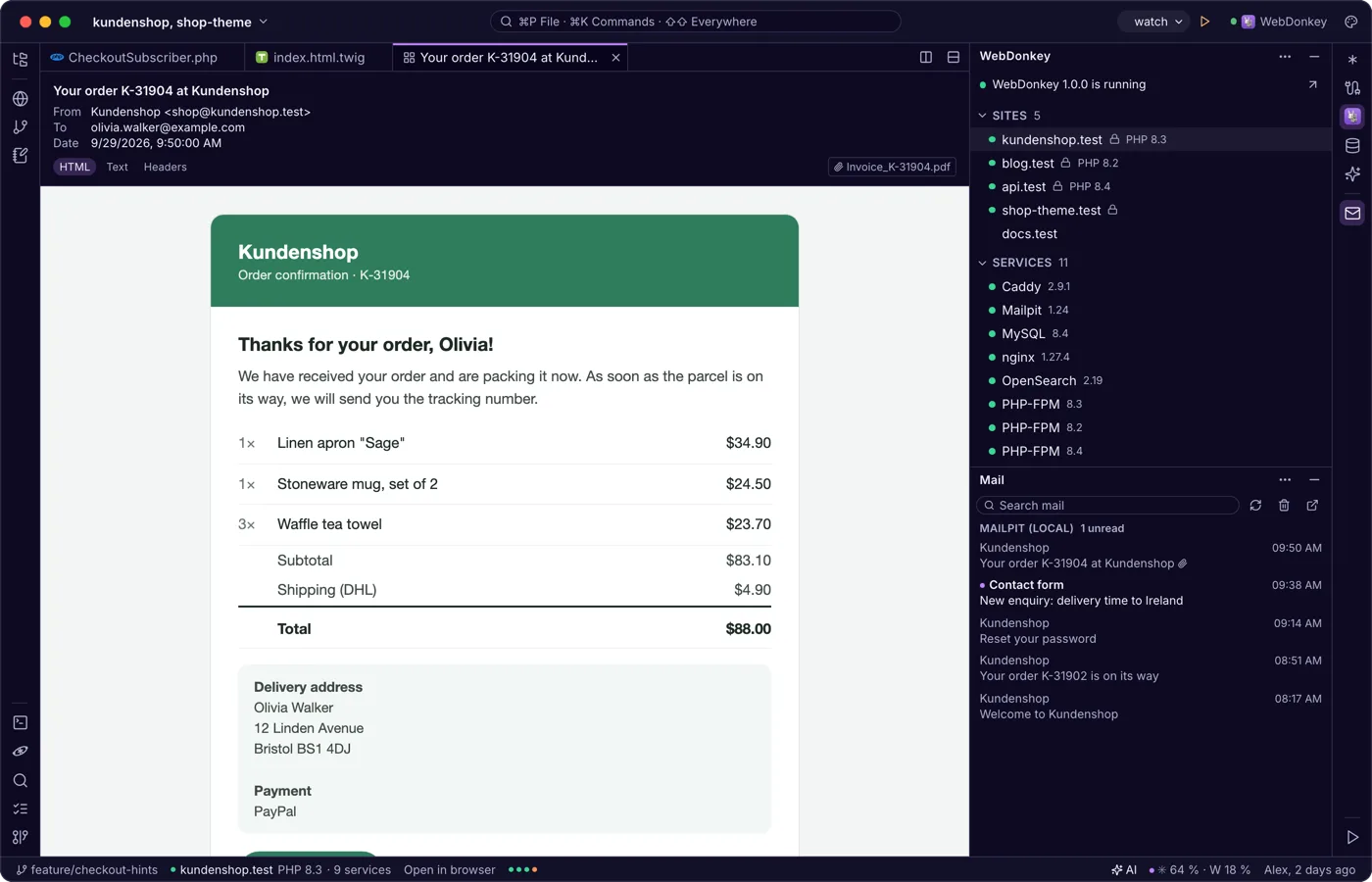
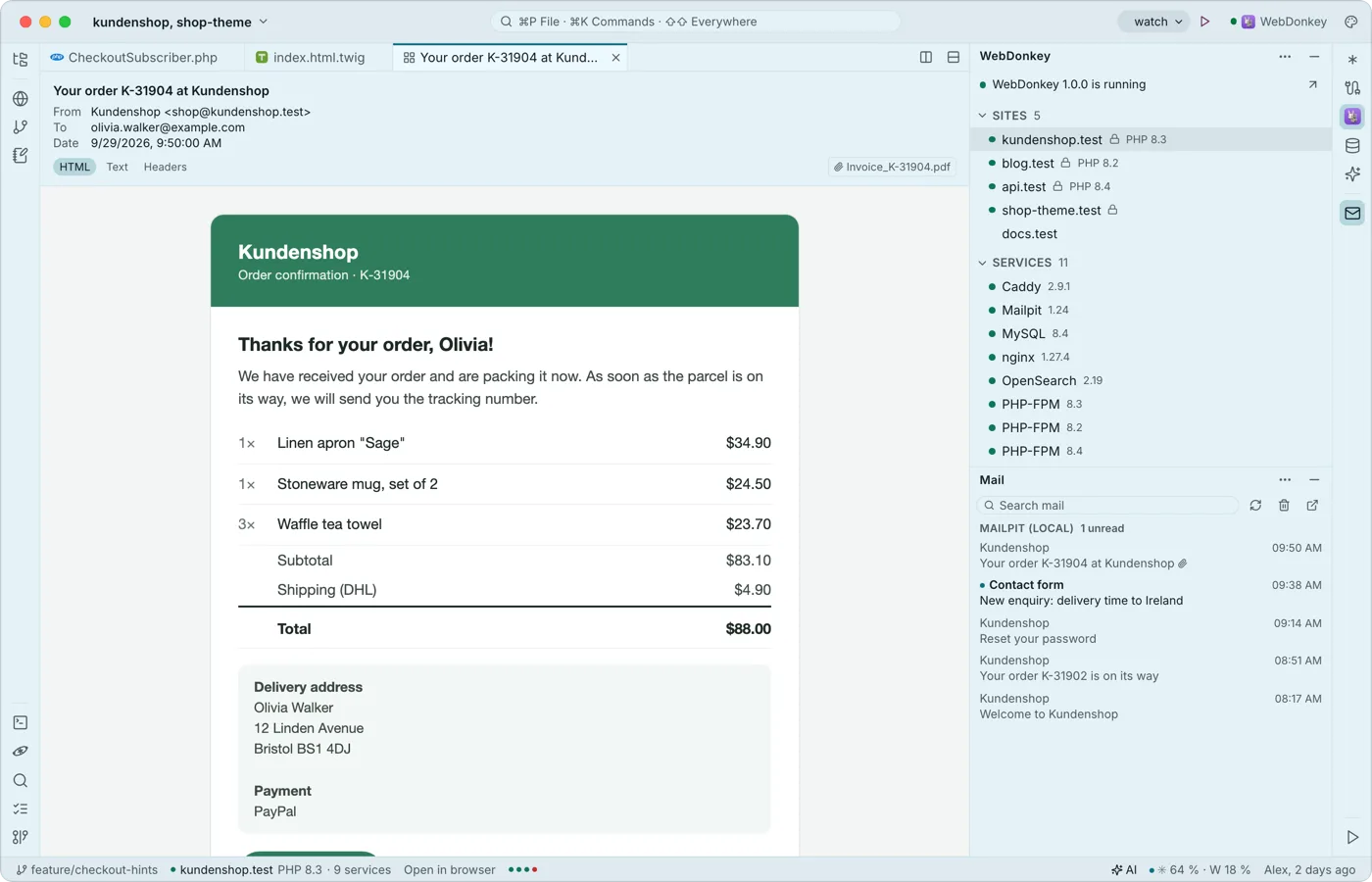 Mail from your projects, read in the editorThe mail window shows what Mailpit caught from your local sites and, with Premium, your servers' mailboxes, read only. A mail opens as a tab with HTML, text and header views; external images stay blocked.
-
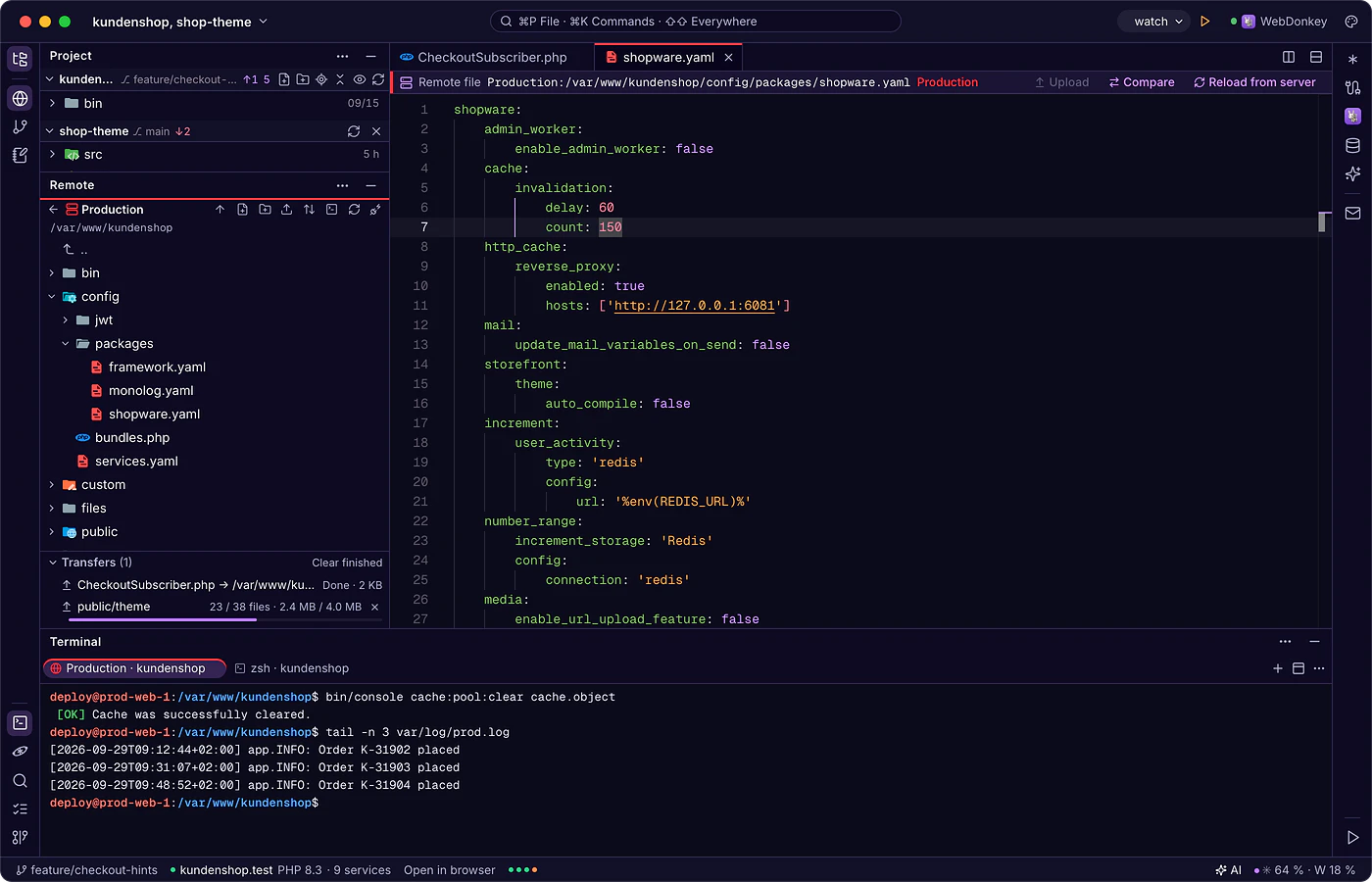
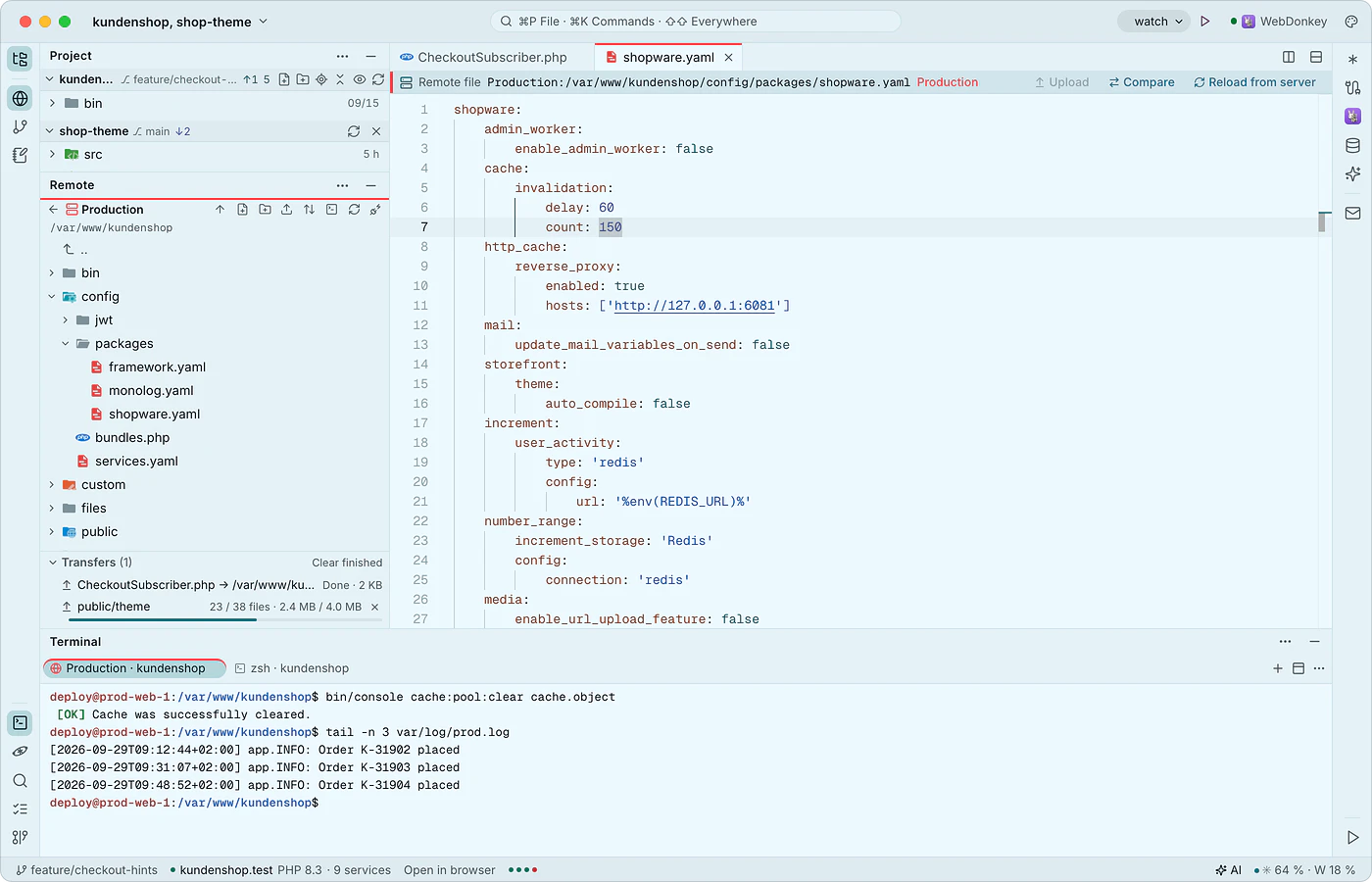 Edit client servers like local filesThe remote window connects to your servers over SSH and SFTP, with the same connections as WebDonkey. You open server files directly; saving goes to a working copy and uploading happens on command, after the editor has checked whether the file changed on the server in the meantime.
-
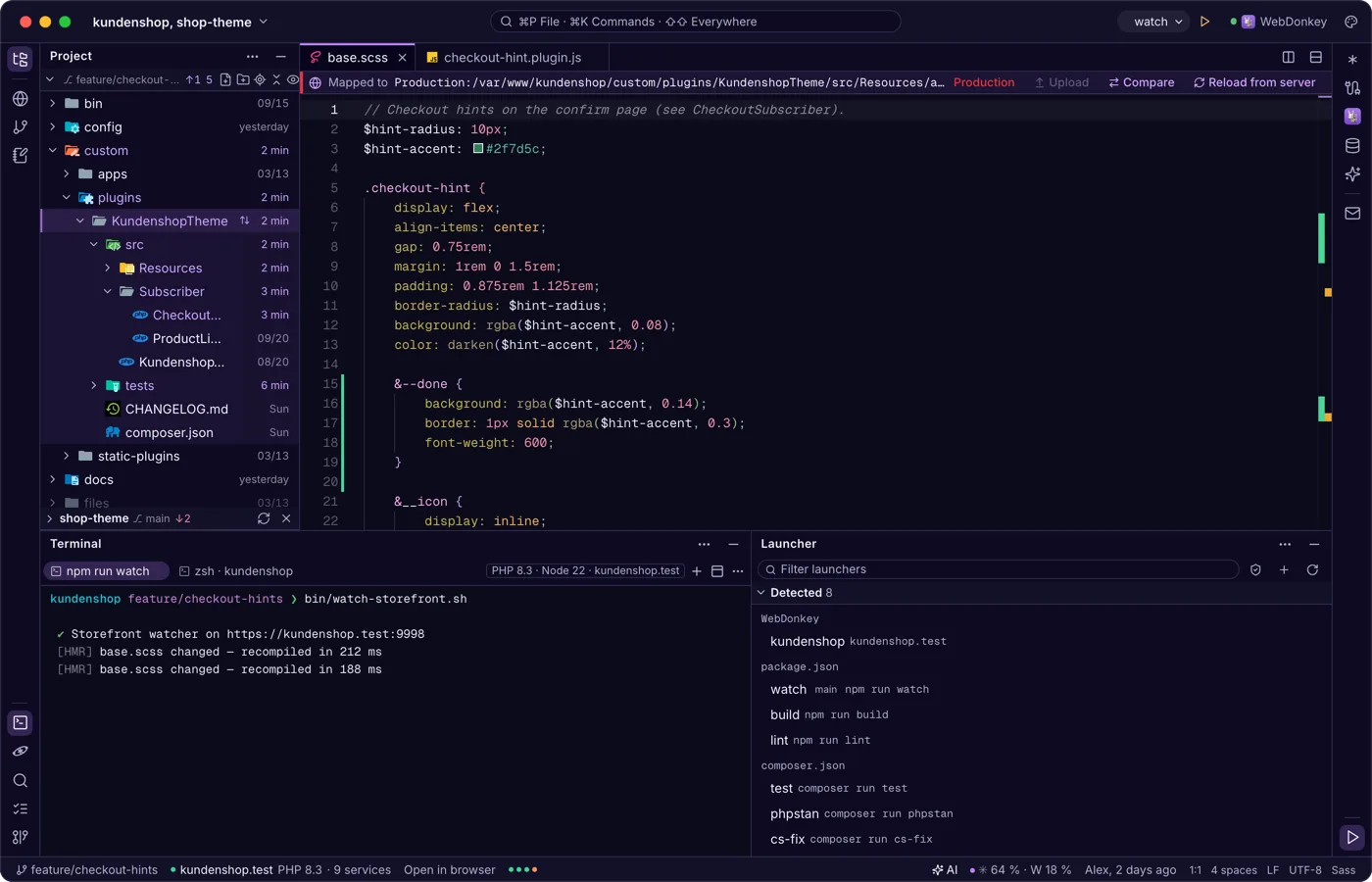
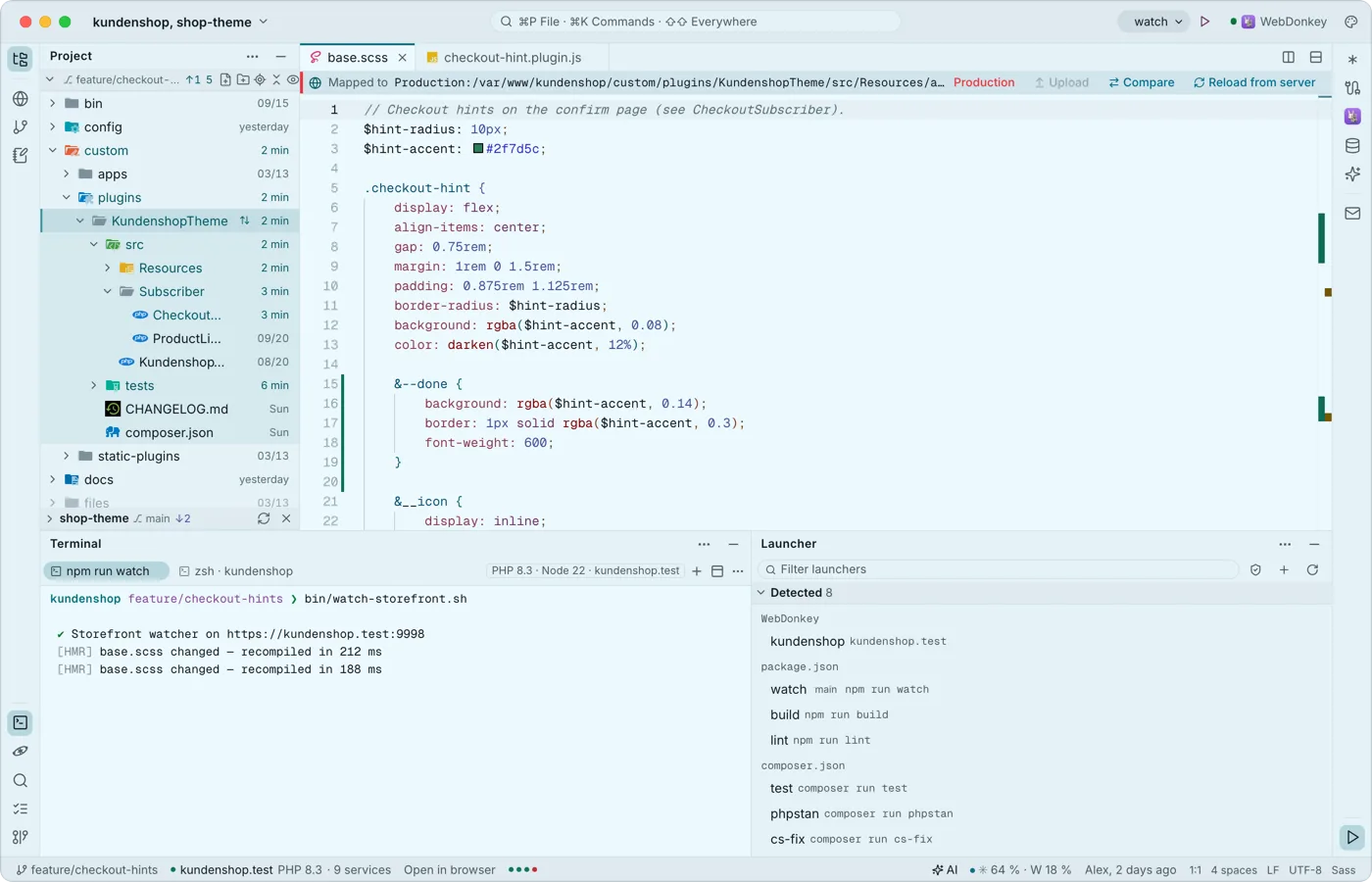 Run what your project can runThe launcher finds dev servers, scripts, console commands and tests in package.json, composer.json, Makefile and many more files. The chosen launcher sits in the title bar with ▶, the launcher window lists them all. Nothing runs by itself.
Try it on your own project.
Free costs nothing and has no time limit. macOS 11 or later, Apple silicon and Intel.
