





Search and shortcuts: your things, one keystroke away
⌘K finds everything. Pages, sites, services, actions, tools, settings, docs, themes. The search learns what you use most, and any action can get a shortcut of its own. That is how you switch between your things without taking your hands off the keyboard.
Free costs nothing and has no time limit. macOS 11 or later, Apple silicon and Intel.
What it takes off your plate
Navigate by keyboard. ⌘K finds pages, sites, services and actions, and any action can get its own shortcut.
In detail
The search
Press ⌘K. With no search term you first see what you did last and what you use most. Below that every category shows its two most used entries: actions, sites, services, sidebar, toolbox, settings, documentation, themes, containers, tools. A click unfolds the category. Which entries come first follows your usage, not a fixed list. Reset search statistics under Settings › Keyboard shortcuts starts again from zero.
Type and hit
A few letters are enough, and the search understands intent: "ssl" lands on certificates, "uptime" on the monitor, "jwt" on the toolbox decoder. Open a site in the browser or jump to its details; start, stop or restart a service. An entry that only opens a dialog says so. If an action has a shortcut, its keys are shown right on the row.
Your own shortcuts
Under Settings › Keyboard shortcuts you pick an action from the same list as the search, record the keys and save. A single letter, a combination with ⌘ ⌥ ⌃ ⇧ or a sequence like G, then S: all of it works. Reserved system shortcuts and duplicate bindings are caught, and the app tells you who already has that shortcut. Nothing fires while you are typing in fields, editors or the terminal.
Undo within five seconds
After a shortcut a notice at the bottom shows what just happened and which keys it was. A bar runs down for five seconds, and during that time ⌘Z or the Undo button takes the action back: navigation returns to where you were, start becomes stop, the theme switches back. Where an action cannot be undone, the notice says so. You can dismiss the notice once or turn it off completely; ⌘Z still works.
What does Free include?
This feature is fully included in Free. No licence and no time limit.
Compare Free and PremiumGoes well with this
-
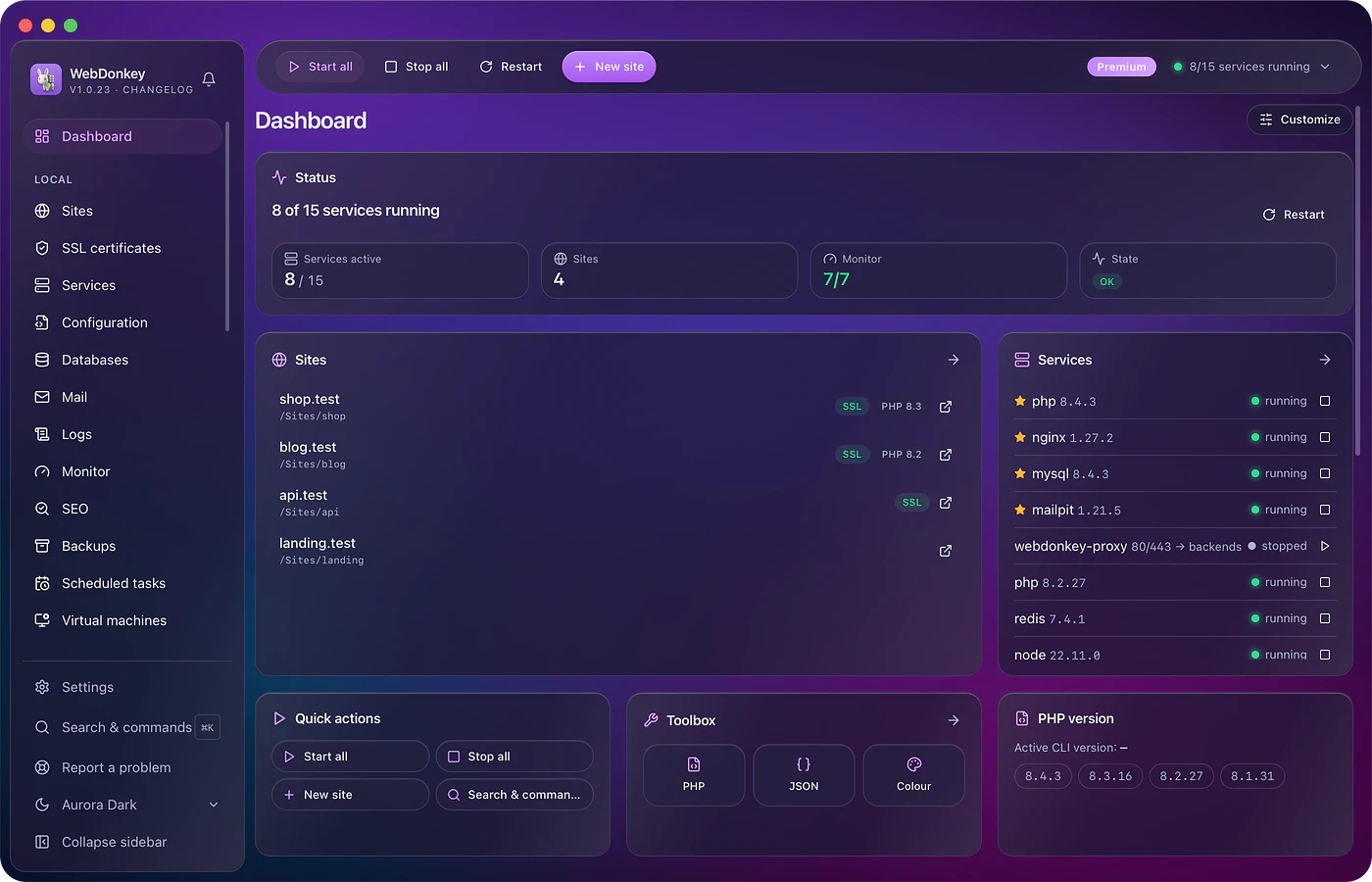
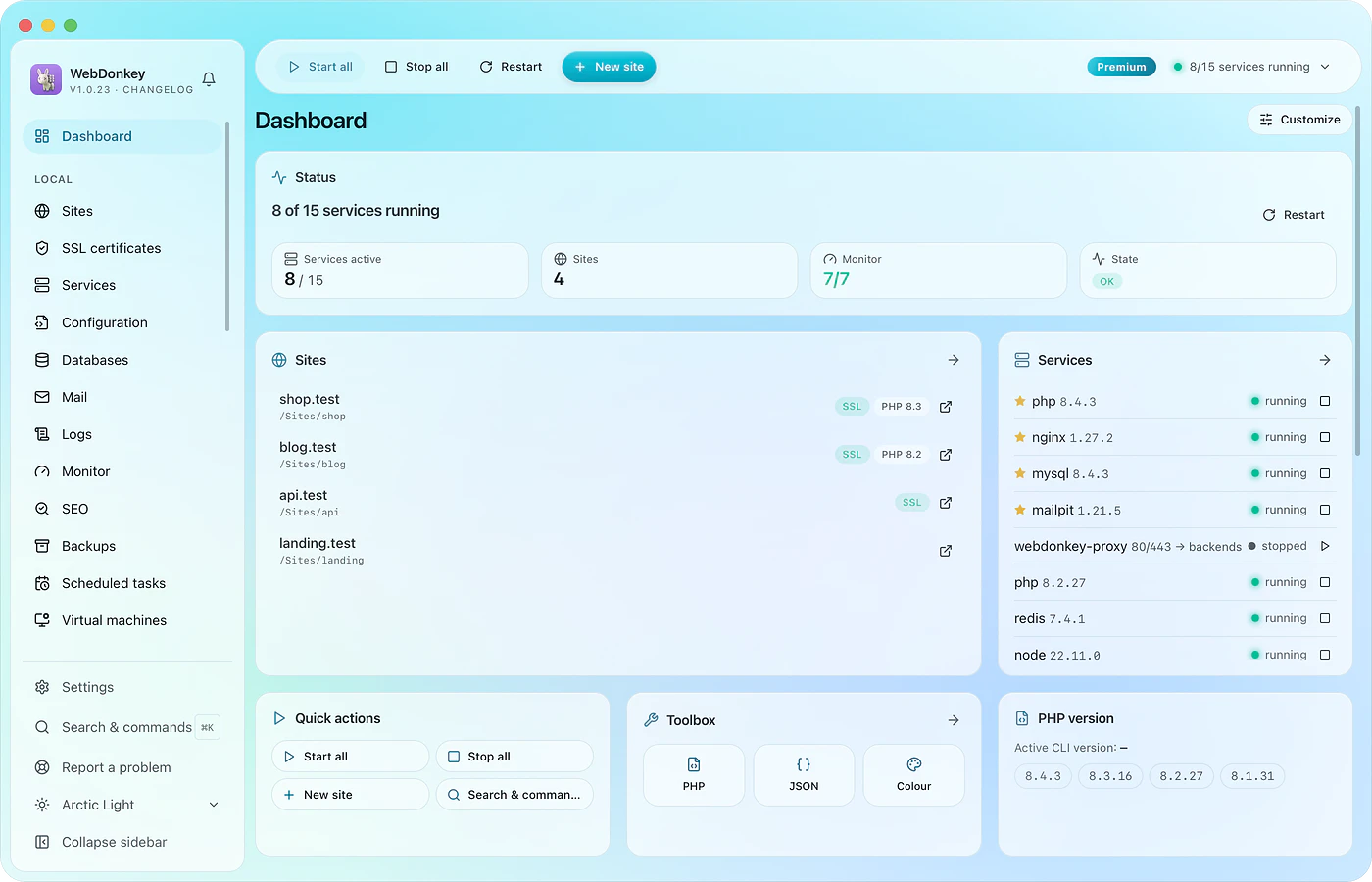 A dashboard you assemble yourselfThe state of your setup at a glance: running services, your sites, caught mail, subscriptions due, your backup sets. Which tiles go where is up to you, by drag and drop.
- An interface that stays out of your wayThe sidebar on the left holds everything the app can do. The top bar holds what you need all the time. And ⌘K opens a search that takes you anywhere in two keystrokes.
Try it on your own project.
Free costs nothing and has no time limit. macOS 11 or later, Apple silicon and Intel.
