





An interface that stays out of your way
The sidebar on the left holds everything the app can do. The top bar holds what you need all the time. And ⌘K opens a search that takes you anywhere in two keystrokes.
Free costs nothing and has no time limit. macOS 11 or later, Apple silicon and Intel.
In detail
The sidebar
The sidebar is sorted by where the work happens: Local for everything on your Mac, Remote for everything on your servers, then Tools and Account & Help. The dashboard sits above them, Settings at the very bottom. Entries you do not need can be hidden in Settings. Collapsed, only the icon column remains.
The top bar
On the left: Start all, Stop all, Restart and New site. On the right, a badge tells you whether you are on Free or Premium, and a dot with a counter shows how many services are running. Click it for the list, to stop or restart any of them from whatever page is open. Next to it sit the running uploads and downloads of the remote file manager.
Ports in use
If the front proxy or a service cannot start because another program holds its port, a notice under the top bar names that program. A button such as Free port 3306 ends it and then restarts the service; for the front proxy it is Free ports 80/443. If the DDEV router holds the ports, Move DDEV router puts it on other ports. WebDonkey does not free a system process, and the notice says so.
Changelog
Next to the version number in the sidebar sits the Changelog link. One click opens the version history: what changed in each version.
Notifications
The bell at the top of the sidebar collects what happened: finished installs, downloads and backups, scheduled tasks that ran, available updates, crashed processes, new mail in Mailpit, subscriptions due, state changes in the monitor and a Claude waiting for your input. Which messages you get is up to you in the settings, each kind on its own.
Report a problem
At the bottom of the sidebar. Pick what it is about and the app opens the right channel in your browser: the community for a question or a small glitch, a ticket that gets tracked and answered for a real bug.
Theme switch
At the bottom of the sidebar you switch between Aurora Dark, Arctic Light and System, with Premium also Sunset, Sunrise and Galaxy, plus your own themes. Manage themes… takes you to the Themes page.
Page state
You switch between pages without losing anything: tabs, filters, search fields, the selected row, the scroll position, half-filled forms and unsaved editor content are still there when you come back. That holds while the app runs; the next start begins fresh. Only inputs in the Toolbox are kept across a restart.
Setup on first launch
On first launch a wizard takes you through setup in five steps: install Homebrew and nginx, allow writing /etc/hosts, start the front proxy on ports 80 and 443, trust the local root CA and, if you want, let scheduled tasks and backups run while the app is closed. Every step says beforehand what it does. Do this later puts a step off, and everything can be changed later in the settings.
What does Free include?
This feature is fully included in Free. No licence and no time limit.
Compare Free and PremiumGoes well with this
-
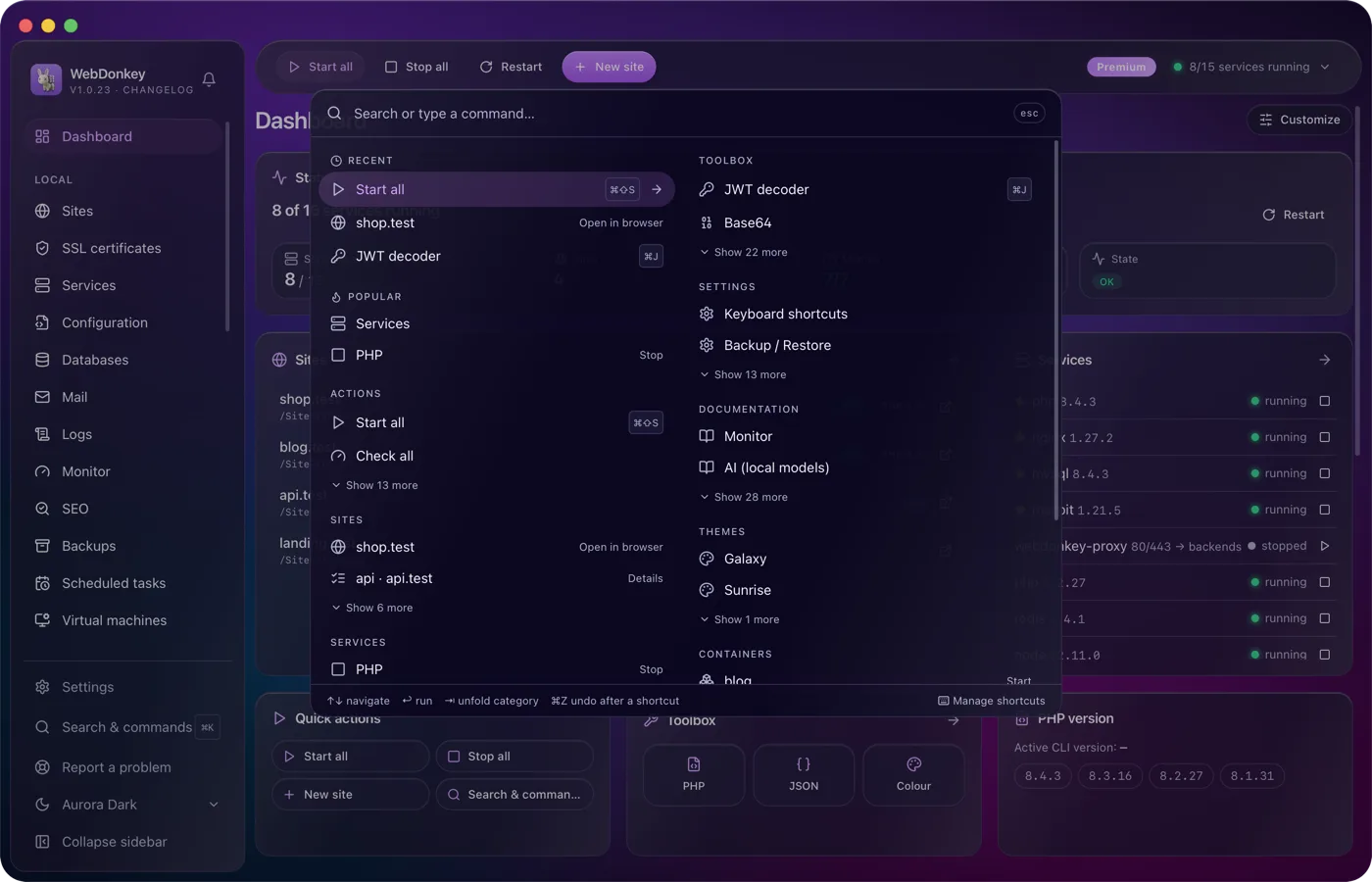
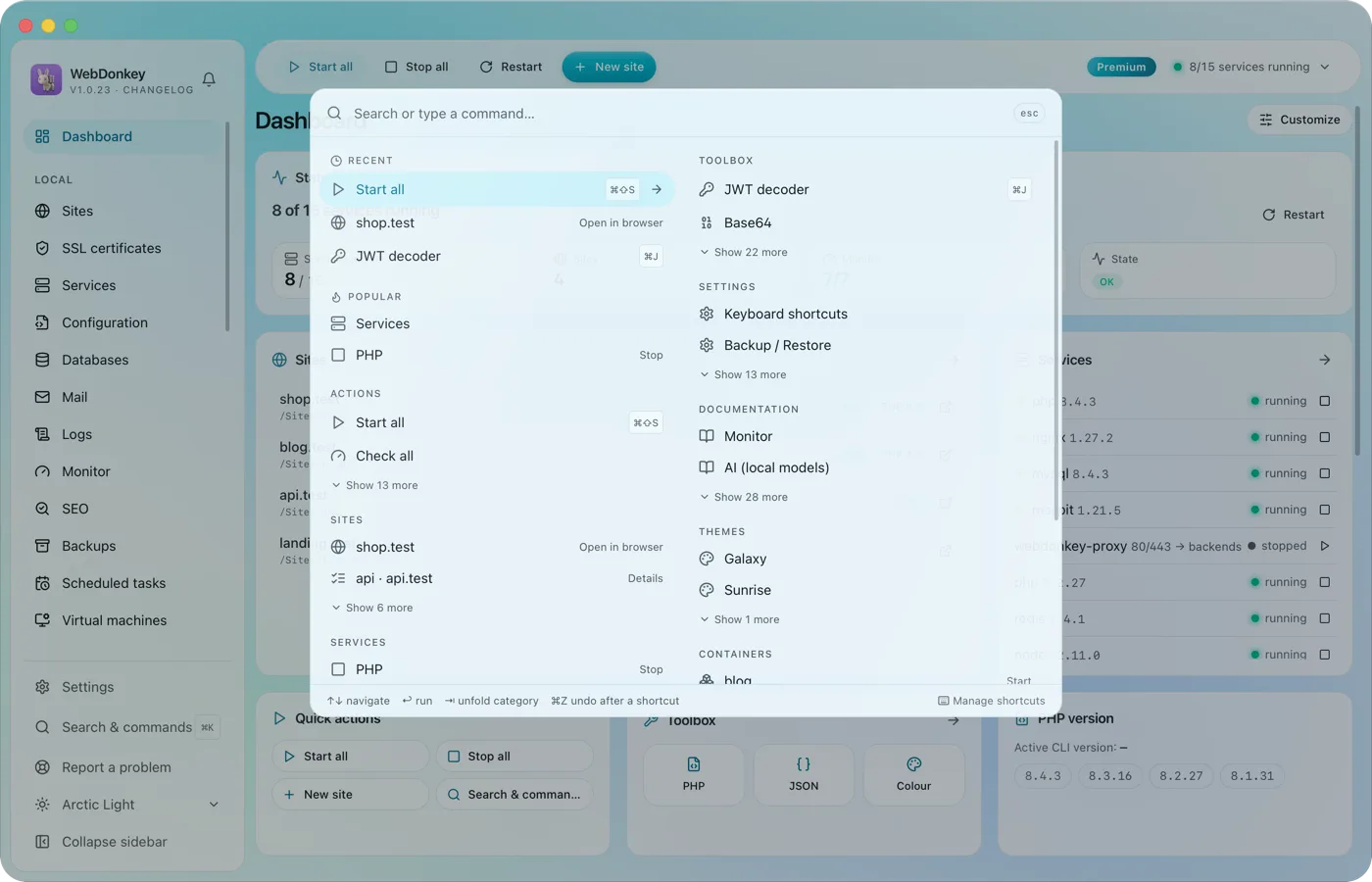 Search and shortcuts: your things, one keystroke away⌘K finds everything. Pages, sites, services, actions, tools, settings, docs, themes. The search learns what you use most, and any action can get a shortcut of its own. That is how you switch between your things without taking your hands off the keyboard.
-
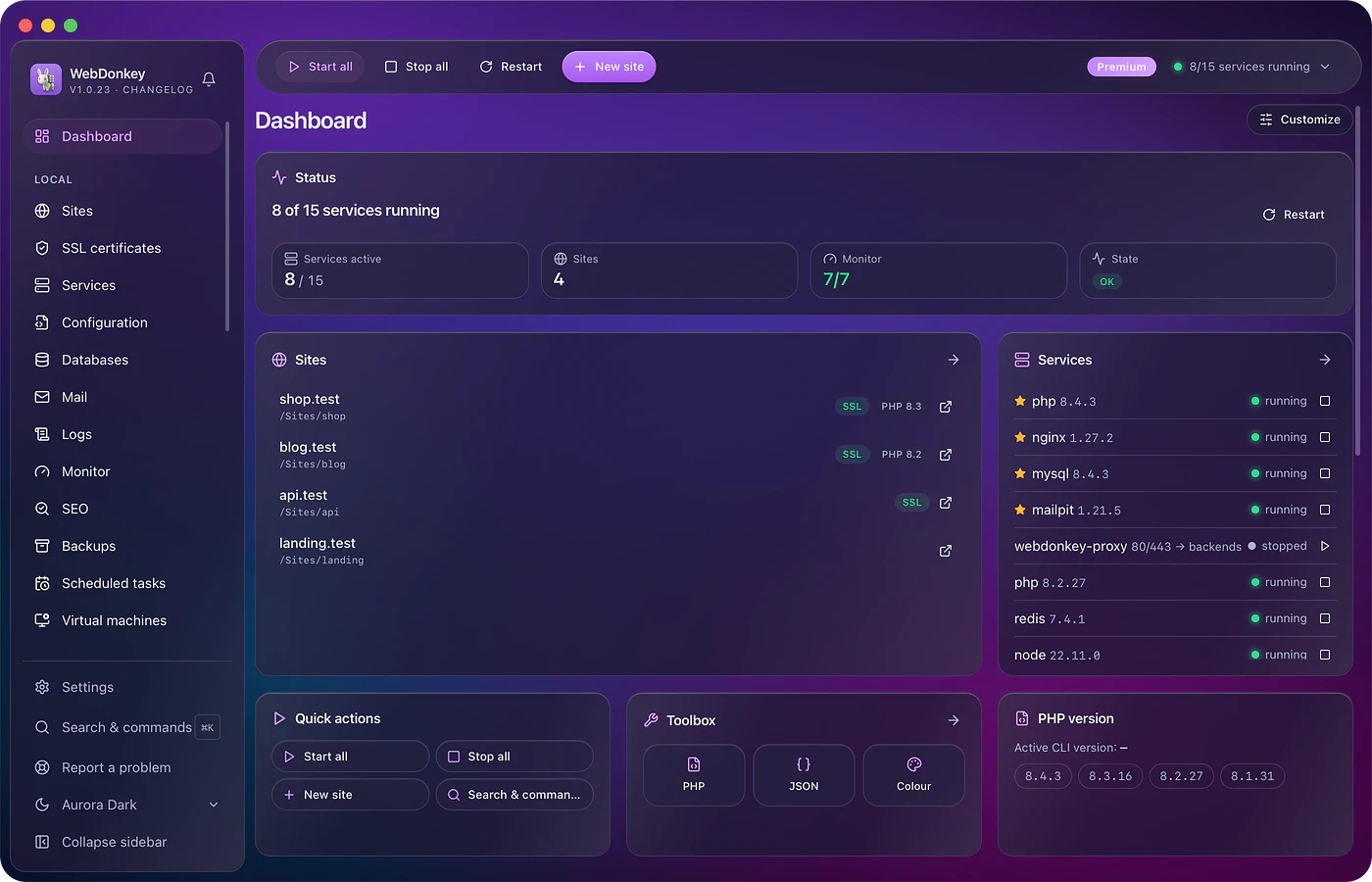
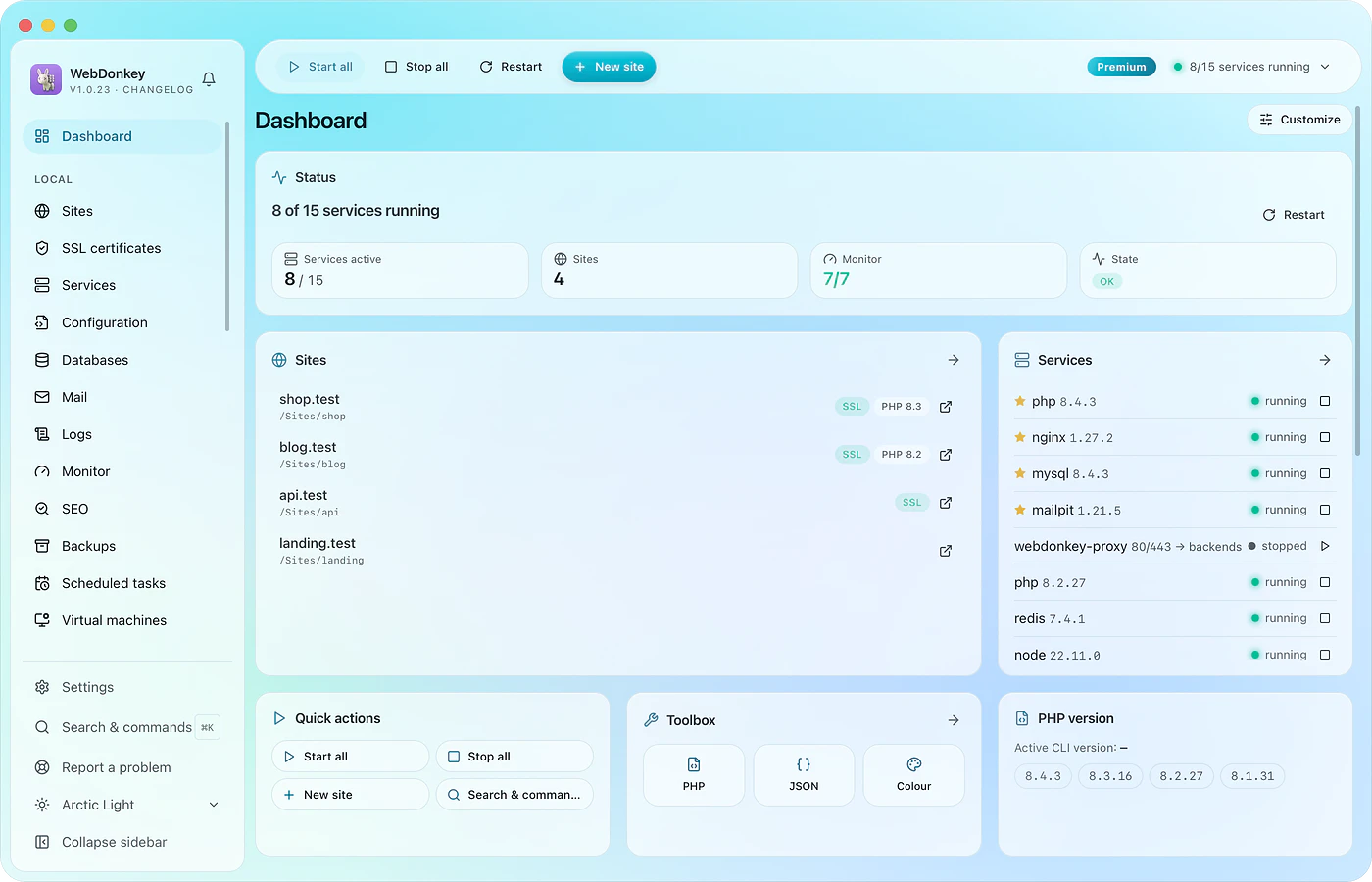 A dashboard you assemble yourselfThe state of your setup at a glance: running services, your sites, caught mail, subscriptions due, your backup sets. Which tiles go where is up to you, by drag and drop.
Try it on your own project.
Free costs nothing and has no time limit. macOS 11 or later, Apple silicon and Intel.
